How to See How Many Storage Slots My PC Has
Introduction
Knowing how many storage slots your PC has can be incredibly useful. It helps in planning upgrades, improving performance, and ensuring your computer meets your storage needs. This guide will walk you through the methods to determine the number of storage slots in your PC, both through software and physical inspection. We’ll also cover common motherboard configurations and what upgrades might suit you best.
Understanding Different Types of Storage
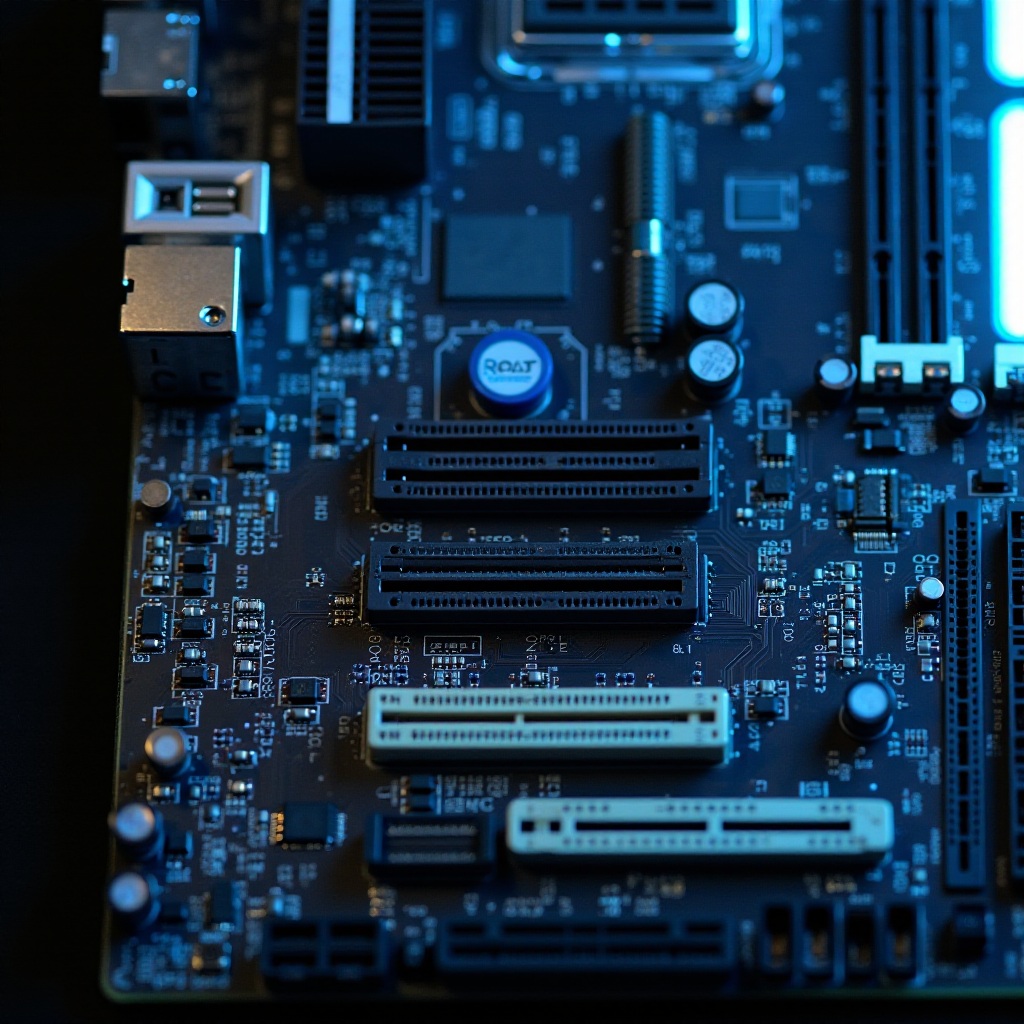
Before diving into the methods for checking storage slots, it's important to understand the different types. PCs generally use two main types of storage: HDDs (Hard Disk Drives) and SSDs (Solid State Drives). These devices come in various forms and connect to your motherboard through different interfaces.
HDD vs. SSD
HDDs are traditional storage devices that use spinning disks to read and write data. They are generally more affordable and offer higher capacities but are slower and more prone to mechanical failure. SSDs, on the other hand, use flash memory to store data, making them faster, more durable, and increasingly more affordable.
SATA vs. NVMe
Storage devices connect to your motherboard through interfaces such as SATA (Serial ATA) and NVMe (Non-Volatile Memory Express). SATA is the more common interface and is used by most HDDs and many SSDs. NVMe is a newer, faster interface that connects directly to the motherboard's PCIe (Peripheral Component Interconnect Express) bus, providing significantly higher read and write speeds.
Using Software Tools to Check Storage Slots
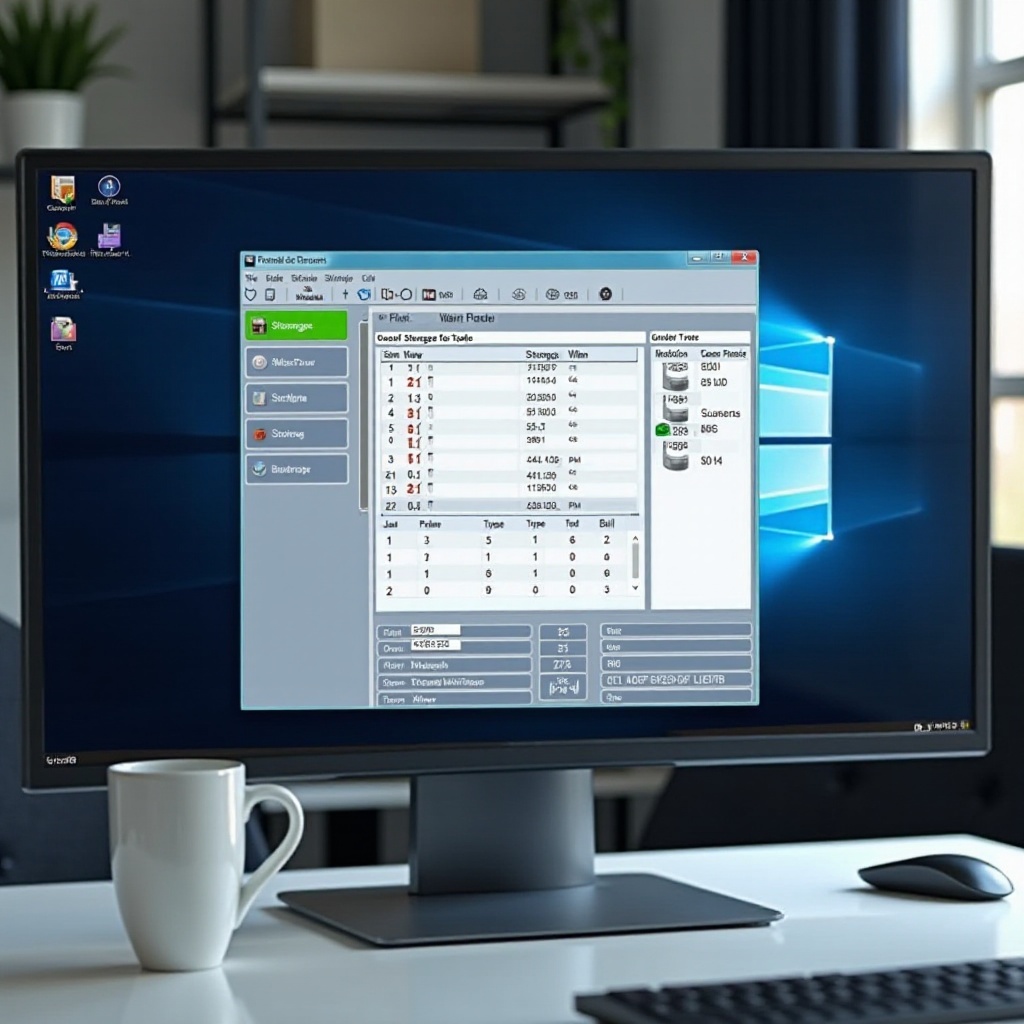
One of the easiest ways to determine the number of storage slots in your PC is by using software tools. These tools can give you a snapshot of what’s installed and what slots are available.
Using Windows Built-In Tools
Windows offers built-in utilities that can help you get basic information about your storage configuration.
Device Manager
- Press Win + X and select Device Manager.
- Expand the 'Disk drives' section to see the storage devices installed on your PC. While this won't give slot-specific details, it can indicate the device presence.
Disk Management
- Press Win + X and select Disk Management.
- This utility will show you the partitions and volumes on your storage devices, though it won’t specify the number of slots.
Third-Party Software Options
For more detailed information, third-party software can provide a comprehensive view.
Speccy
- Download and install Speccy.
- Open the program; under the 'Storage' section, you’ll get detailed information about your storage slots and devices.
CrystalDiskInfo
- Download and install CrystalDiskInfo.
- This tool will provide detailed data about each storage device, including connection type and health status.
Physically Checking Your PC's Storage Slots
Sometimes, the most accurate method is a physical check. This involves opening your PC and visually inspecting the motherboard.
Safety Precautions Before Opening Your PC
- Turn off and unplug your PC.
- Wear an anti-static wrist strap or ground yourself to avoid damaging sensitive components.
Tools Needed for Physical Inspection
- A Phillips-head screwdriver.
- A flashlight.
Steps to Locate Storage Slots on the Motherboard
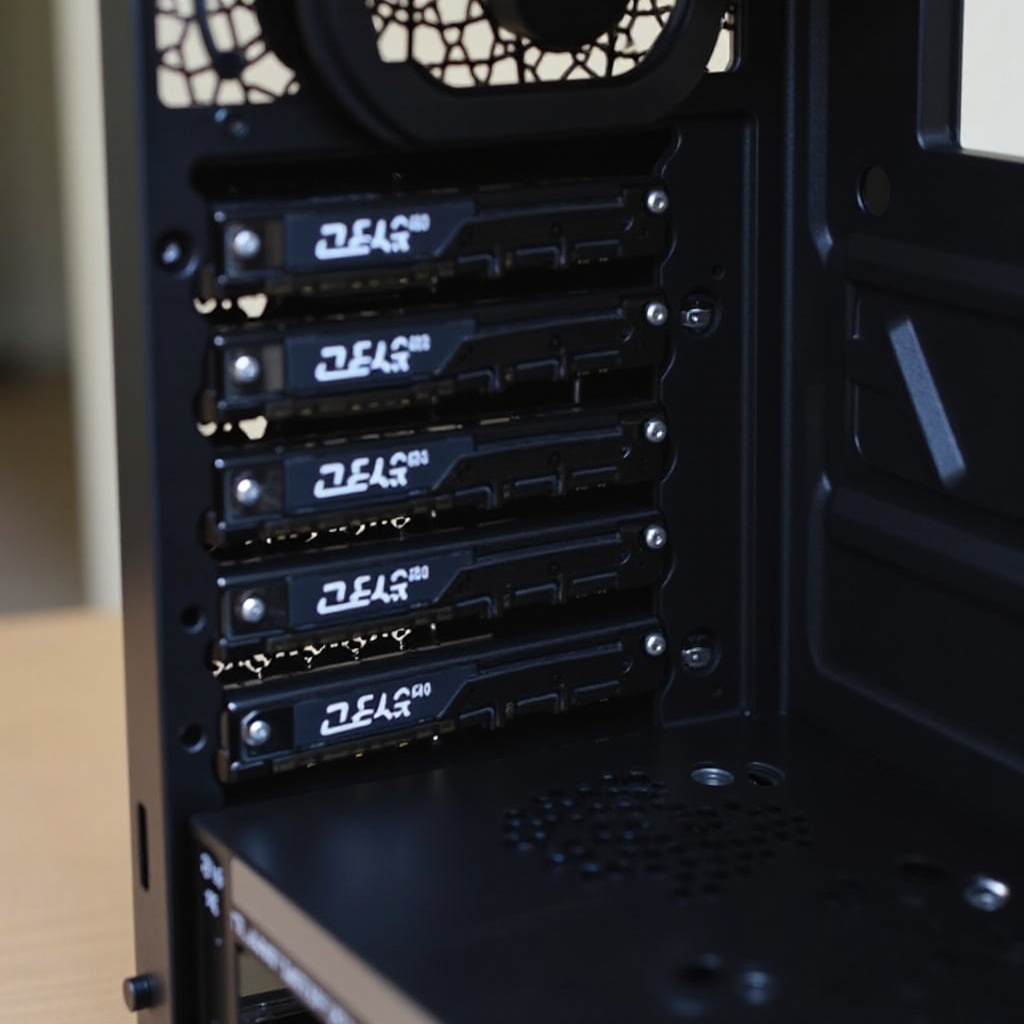
- Open the side panel of your PC case.
- Locate the motherboard.
- Identify the SATA ports and any M.2 slots. SATA ports are usually L-shaped connectors, while M.2 slots are flat and located near the middle of the motherboard.
Common Motherboard Slot Configurations
Motherboards come in various sizes and configurations, each with different numbers and types of storage slots.
ATX, Micro-ATX, and Mini-ITX Configurations
- ATX: Standard size, usually includes multiple SATA and M.2 slots.
- Micro-ATX: Smaller, generally fewer slots than ATX but still versatile.
- Mini-ITX: Compact, typically has limited slots, focusing on single-use setups.
Desktop vs. Laptop Storage Slots
Desktops usually have more expansion slots compared to laptops, which often come with only one or two slots to keep the design slim and portable.
Choosing the Right Upgrade Based on Slots Available
Once you’ve determined the number of available slots, you can decide on the right upgrade.
Assessing Your Storage Needs
- Evaluate your current storage usage.
- Consider future storage needs based on your work or personal requirements.
Comparing Storage Options
- SATA SSDs: Good balance of speed and capacity.
- NVMe SSDs: Best for high-speed data transfer needs.
- HDDs: Ideal for large storage at a lower cost.
Conclusion
Determining how many storage slots your PC has is a straightforward process that can be done through software or physical inspection. Understanding your storage slot configuration helps you make informed decisions about upgrading your system. Regularly managing your storage can ensure your PC runs efficiently and meets your performance needs.
Frequently Asked Questions
How can I find out my PC's storage slot configuration without opening the case?
You can use software tools like Speccy or CrystalDiskInfo to get detailed information about your storage slots without the need to physically open your PC.
What should I do if my expected storage slots aren't available?
If the slots you expected aren't available, consider using external storage solutions like USB drives or external SSDs. Additionally, you may need to consult your motherboard manual or seek professional assistance.
Can I install both an SSD and HDD in my PC?
Yes, most PCs can support both an SSD and HDD. You can install an SSD for your operating system and frequently used applications, and use an HDD for storing large files.