How to Connect Your Sonos Speakers to a New WiFi Network
Introduction
Setting up your Sonos speakers on a new WiFi network may seem daunting, but with the right guidance, the process is straightforward. Whether you're upgrading your home network or settling into a new place, connecting your Sonos speakers is essential for uninterrupted audio enjoyment. In this guide, we will explore step-by-step instructions to set up your Sonos on a new WiFi, troubleshoot potential issues, and optimize your system for the best performance.
Preparing for the Setup
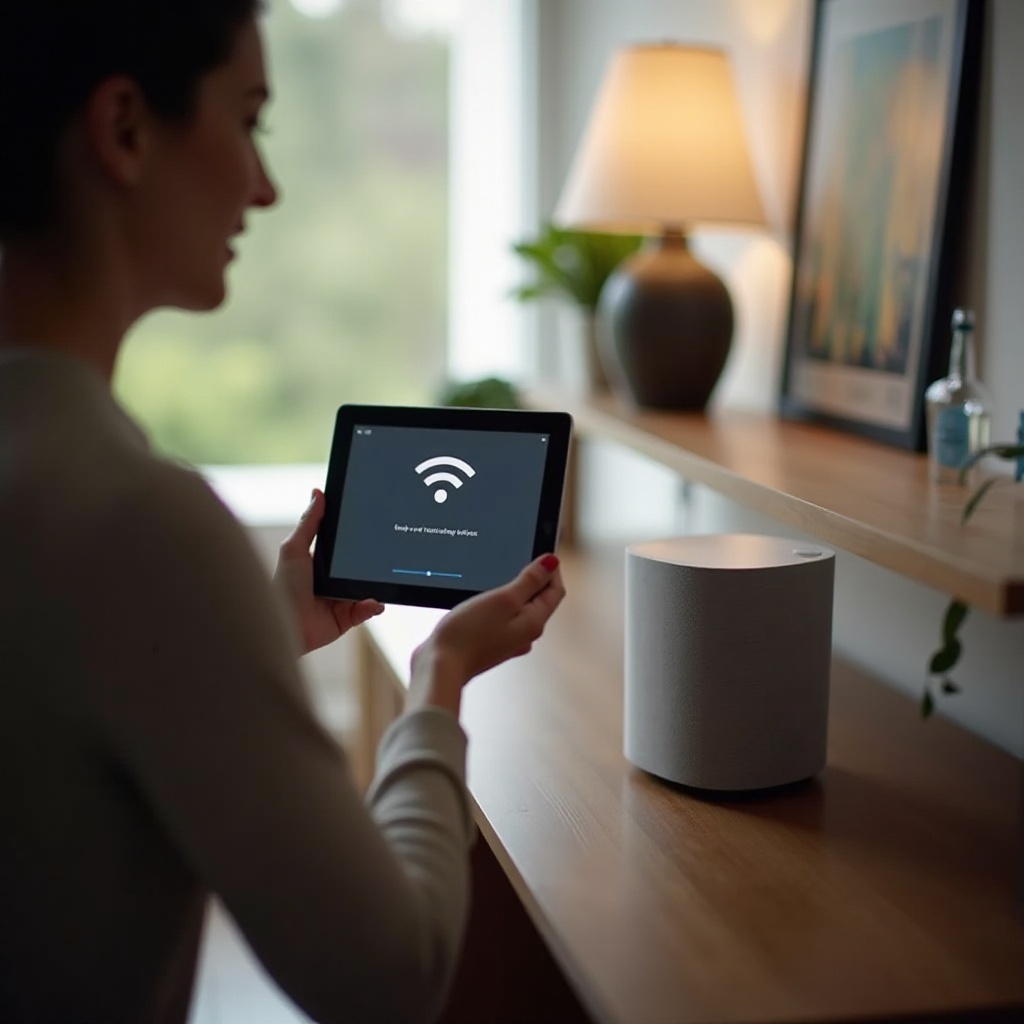
Proper preparation ensures a seamless transition to a new WiFi network.
- Gather Necessary Equipment: Before starting, ensure that you have your Sonos speakers, an updated Sonos app on your device, and the details of your new WiFi network at your fingertips. Collecting this information upfront makes the setup smoother.
- Verify Current WiFi Specifications: It's important to check your new WiFi's network name (SSID) and password. Also, confirm that your network supports the frequencies your Sonos uses, typically 2.4GHz, though some models may use 5GHz.
- Ensure Sonos Software is Updated: An updated Sonos app and speaker firmware prevent compatibility issues. Within the app, you can check for and install the latest updates before proceeding.
Having these elements ready paves the way for the next steps of setting up your Sonos system seamlessly.
Step-by-Step Guide to Connecting Sonos to New WiFi
With preparations complete, you're ready to connect your Sonos system to the new WiFi network.
- Using the Sonos App for Android:
- Start by launching the Sonos app.
- Navigate to 'Settings' and select 'System.
- Click on 'Network' then choose 'Wireless Setup.
Follow the on-screen prompts to enter your new WiFi credentials.
Using the Sonos App for iOS:
- Open the Sonos Controller app.
- Go to 'Settings' and then click on 'System.
- Select 'Network' and tap 'Wireless Setup.
When prompted, input your new WiFi details.
Setting Up with Ethernet for Secure Connection:
- Connect your Sonos speaker directly to the router using an Ethernet cable.
- Open the Sonos app, and it should recognize the connection.
- Follow the instructions in the app to complete the setup.
Following these procedures helps ensure a consistent and effective setup for your Sonos system across any device.
Troubleshooting Common Connection Issues
Even with thorough preparation, occasionally issues arise. Here's how to troubleshoot these problems.
- Network Connectivity Problems: Double-check that you have correctly entered the network name and password. Ensure your device is on the same network when attempting to reconnect.
- Error Messages and How to Fix Them: If you encounter persistent errors, consider powering off your router and Sonos devices for a restart. Often, cycling power resolves many issues.
- Checking Router Settings: Access your router's settings to ensure it's not blocking Sonos connections. Adjust settings if necessary to allow traffic through essential ports that Sonos needs.
Successfully resolving these issues sets the stage for optimizing your Sonos performance on the new network.
Optimizing Sonos Performance on New WiFi
Now that your Sonos system is connected, it's time to ensure it performs optimally.
- Updating Firmware and Software: Regular updates to both software and firmware can enhance sound quality and system reliability. Make a habit of checking for new updates within the app.
- Adjusting Network Settings for Better Sound: Strategically position your router to minimize barriers and avoid interference from other electronic devices, ideally placing it at the center of your space.
Through these optimization steps, your Sonos setup can deliver exceptional audio experiences consistently and reliably.

Conclusion
Transitioning your Sonos speakers to a new WiFi network doesn't need to be difficult. By following this guide—from preparation and connection to troubleshooting and optimization—you'll enjoy seamless, high-quality audio without interruption. Proper setup and frequent maintenance ensure you get the most from your Sonos system.
Frequently Asked Questions
What should I do if my Sonos speakers won't connect to the new WiFi?
Verify the WiFi details, restart your router and devices, and ensure the Sonos app is updated.
Can I connect Sonos to multiple WiFi networks?
Sonos can only connect to one network at a time, but you can switch networks through the Sonos app.
How do I reset my Sonos system if I'm still having problems?
Perform a factory reset on your Sonos speaker via the settings menu, but remember this will erase all current settings.