How to Fix a Headset Microphone Volume That Lowers by Itself
Introduction
Struggling with your headset microphone volume lowering by itself can be quite frustrating. This issue can disrupt important calls, gaming sessions, or streaming activities. The good news is, you can fix it with some straightforward troubleshooting steps. Let's dive into how you can solve this common problem and ensure a stable microphone volume.
Common Causes of Automatic Volume Adjustment
Understanding the root causes of your microphone volume adjusting automatically is the first step to resolving the issue. Here's what you need to know:
Software and Driver Issues
One prevalent cause is outdated or incompatible software and drivers. Your operating system and installed programs constantly communicate with your hardware. If the drivers are outdated, this communication may not work correctly, leading to automatic volume adjustments.
Hardware Connectivity Problems
Loose or damaged connections can also be a culprit. Check if your headset is firmly plugged in, and inspect the cables for any signs of damage. Sometimes, simply reconnecting your headset can resolve the volume fluctuation issue.
Interference from Other Devices
Electronic devices emit signals that can interfere with your headset. If your microphone volume changes unexpectedly, it might be worth checking if any nearby devices are causing interference.
Operating System Auto-Adjustment Features
Operating systems like Windows have auto-adjustment features designed to control microphone volume levels. While these features aim to optimize audio quality, they can sometimes cause more harm than good by frequently adjusting the volume levels.
How to Diagnose the Problem
Diagnosing the problem accurately will help you address it more effectively. Here's how:
Checking Software Settings
Begin by checking your software settings. Look for any options related to microphone volume control in your operating system and communication applications like Skype, Zoom, or Discord. Disable any auto-adjustment features and manually set the volume levels.
Inspecting Physical Connections
Next, inspect the physical connections. Ensure your headset is securely plugged into the correct port. Examine the cables for any wear and tear that might cause connectivity issues.
Testing on Different Devices
Finally, test your headset on different devices. This step will help you determine if the issue lies with the headset or the device you initially used. If the microphone works fine on another device, the problem might be with your original device.
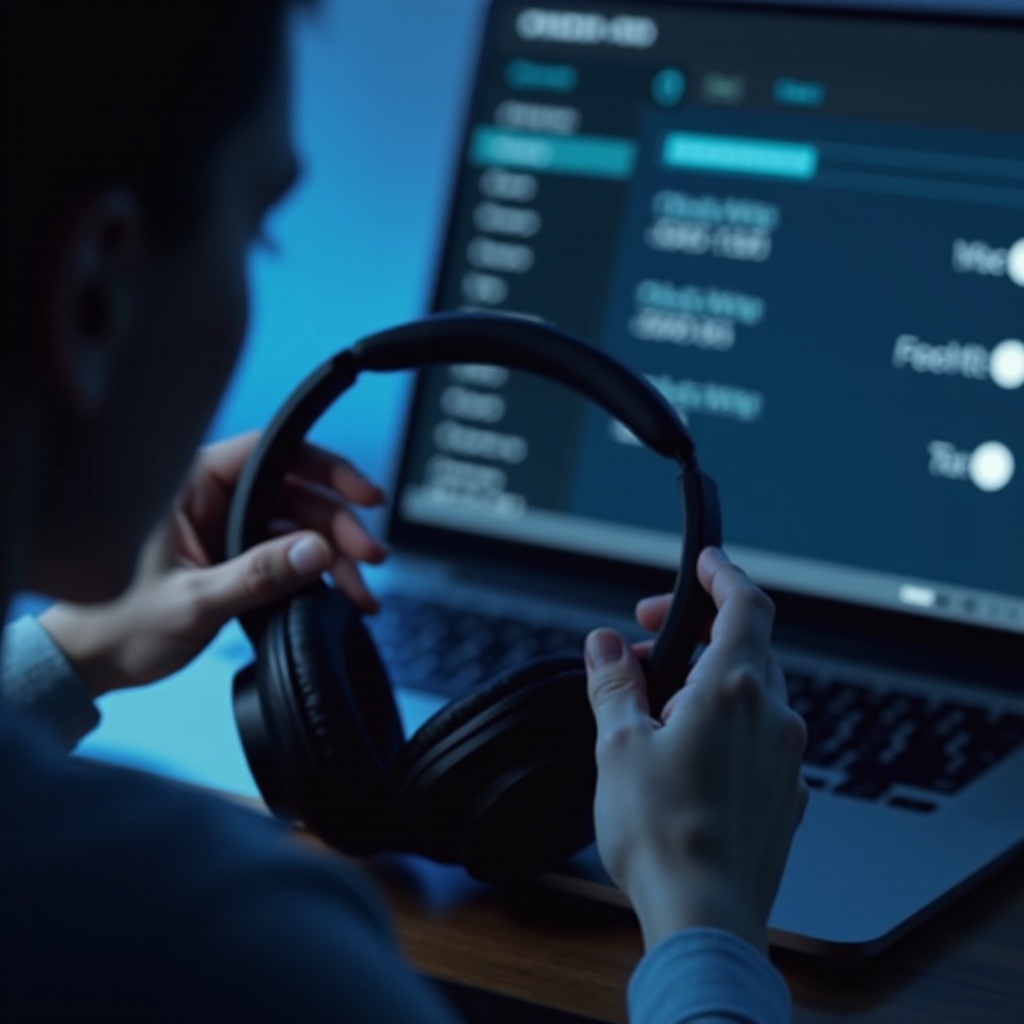
Step-by-Step Troubleshooting Guide
If you've diagnosed the issue but still face problems, follow this detailed troubleshooting guide:
Updating Audio Drivers and Firmware
- Locate the Latest Drivers: Visit your headset manufacturer's website to find the latest drivers and firmware for your headset model.
- Install Updates: Download and install these updates. Restart your computer to apply the changes.
Adjusting Operating System Settings
- Access Sound Settings: Open your operating system's sound settings. On Windows, right-click the sound icon in the taskbar and select 'Sounds.
- Disable Enhancements: Navigate to the 'Recording' tab, select your headset, and click 'Properties.' In the 'Enhancements' tab, uncheck all audio enhancements.
- Set Levels Manually: Move to the 'Levels' tab and manually set your microphone volume to prevent automatic adjustments.
Reducing Electronic Interference
- Identify Potential Interferences: Identify any nearby devices that could be causing interference, such as routers or other wireless devices.
- Reorganize Setup: Position these devices away from your headset and audio equipment to minimize signal interference.
Setting Manual Volume Control
Many headsets come with manual volume controls:
- Use On-Headset Controls: Adjust the volume using the controls directly on your headset.
- Check Inline Controls: If your headset has inline controls on the cable, ensure they are set correctly to maintain a consistent volume.
Advanced Solutions for Persistent Issues
If the basic troubleshooting steps don’t resolve the problem, consider these advanced solutions:
Using Third-Party Audio Management Software
- Research Available Software: Look into third-party audio management software such as VoiceMeeter or Equalizer APO.
- Install and Configure: Download and install the software, following the setup instructions to gain more detailed control over your microphone settings.
Considering Professional Repair Services
If all else fails, consider seeking professional help:
- Contact Manufacturer: Reach out to your headset manufacturer for repair services.
- Visit a Repair Shop: Alternatively, consider visiting a local tech repair shop to diagnose and fix any hardware issues.
Preventative Measures
Taking preventive measures can help you avoid volume issues in the future:
Regular Maintenance and Updates
- Keep Software Updated: Regularly check for driver and firmware updates to ensure your headset operates smoothly.
- Clean Your Headset: Clean your headset regularly to prevent dust and debris from affecting performance.
Choosing High-Quality Headsets
Investing in a high-quality headset can help you avoid frequent issues:
- Read Reviews: Before purchasing a new headset, read reviews and choose products known for their reliability and performance.
- Check Specifications: Ensure the headset has robust build quality and effective noise-cancellation features.
Conclusion
A fluctuating microphone volume can be highly disruptive, but by following these steps, you can resolve the issue effectively. Regular maintenance and choosing reliable hardware play key roles in preventing similar problems in the future. Don’t let technical issues hamper your productivity—stay proactive and keep your audio equipment in top shape.
Frequently Asked Questions
Why does my headset microphone volume keep changing automatically?
The volume may change due to outdated drivers, interference from other devices, or auto-adjustment features in your operating system.
How can I stop my operating system from adjusting my microphone volume?
You can stop this by accessing your sound settings and disabling any enhancements or auto-adjustment features. Set the volume levels manually to ensure stability.
What should I do if none of the troubleshooting steps fix the issue?
If the problem persists, consider using third-party audio management software or seek professional repair services to diagnose and resolve hardware issues.