HP Printer Scan to Computer: How to Fix You Cannot Use This Function Error
Introduction
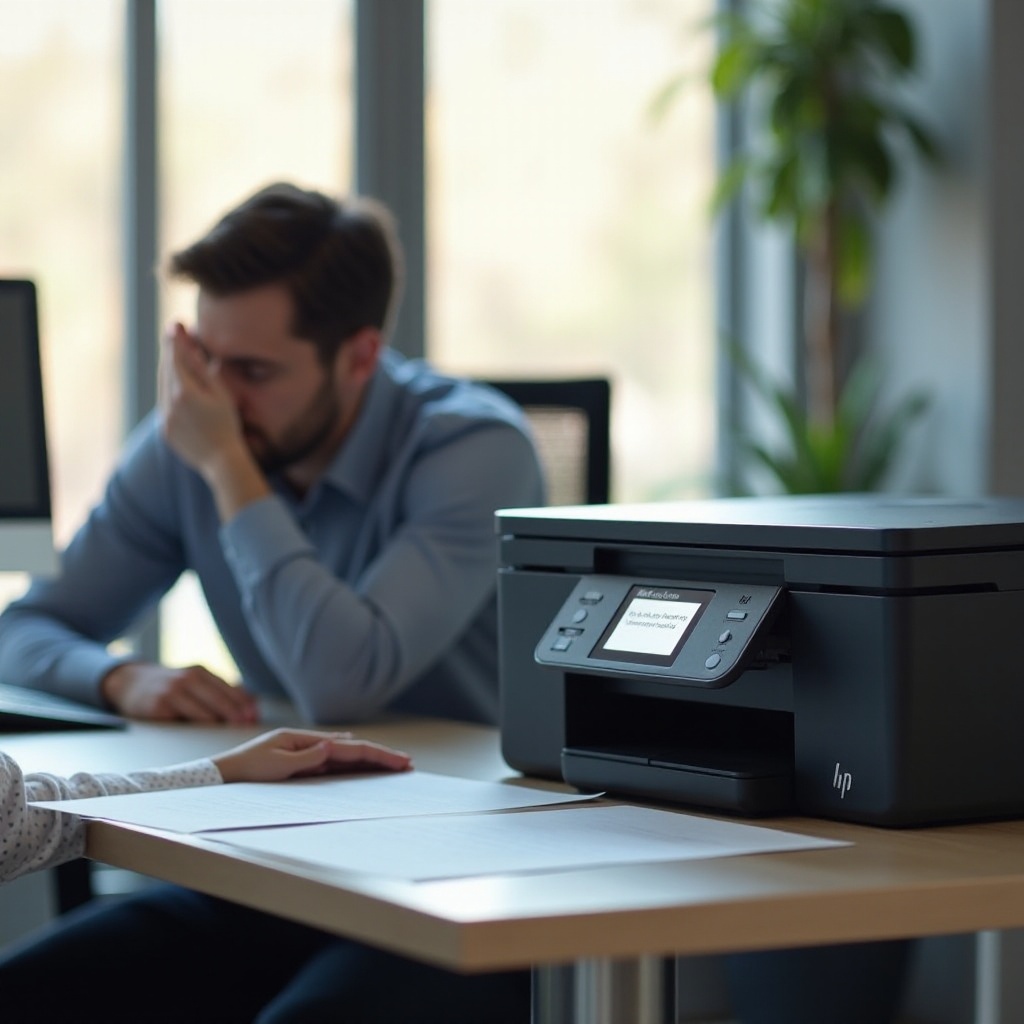
Dealing with HP printer issues can be a frustrating experience, especially when you encounter the dreaded 'You cannot use this function' error while trying to scan to your computer. This common problem hinders the seamless workflow many users depend on for both personal and professional tasks. This guide aims to provide comprehensive troubleshooting steps to help you resolve this error and get your HP scanner back to optimal performance.
Understanding the Issue
What Does the 'You Cannot Use This Function' Error Mean?
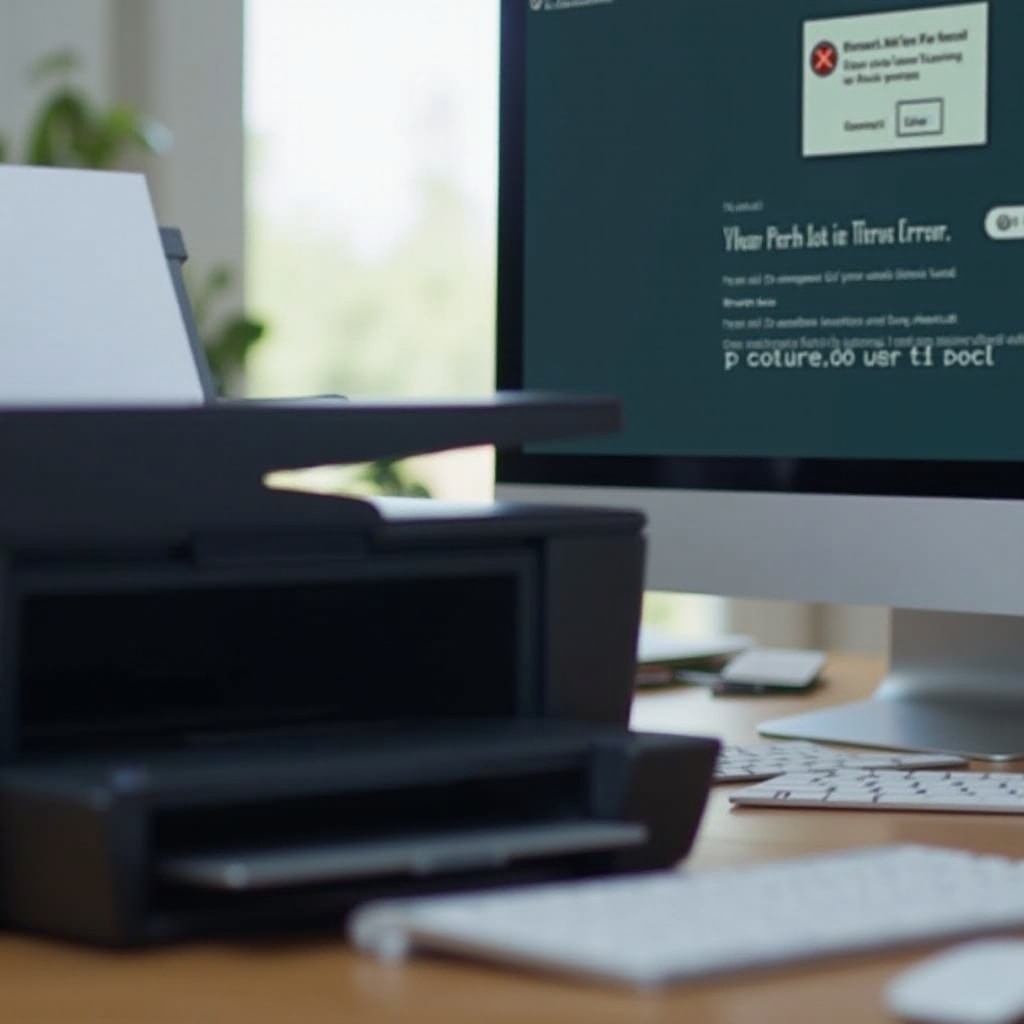
This error message typically appears when there's a connectivity issue between your HP printer and computer, or if the necessary software components are not functioning correctly. It prevents you from using the scan-to-computer feature, which is crucial for digitizing documents and images.
Common Causes of the Error
- Outdated Software: Your printer’s drivers or related software might be outdated.
- Connectivity Issues: Issues with the network or USB connections.
- Firewall Settings: Your computer’s firewall might be blocking the necessary services.
- Corrupted Printer Settings: Sometimes, the settings within the HP printer software can become corrupted.
Understanding these common causes can streamline the troubleshooting process and prevent wasted time on irrelevant solutions.
Preliminary Checks
Let’s start with the basics. Often, preliminary checks can resolve the issue without additional troubleshooting.
Checking Physical Connections and Power
- Ensure All Cables Are Securely Connected: If you are using a wired printer, verify that the USB cable is properly connected to both the printer and the computer.
- Power Cycle the Printer and Computer: Turn off the printer and the computer, then unplug them. After a few minutes, plug them back in and restart both devices. Sometimes, a simple reboot can solve the problem.
Ensuring Printer and Computer Are on the Same Network
For wireless printers, ensure that both your computer and printer are connected to the same Wi-Fi network:- Check network settings on your printer’s display panel.- Verify the computer’s network connection via network settings.
If both devices are not on the same network, reconnect them to the appropriate network.
Step-by-Step Troubleshooting
After performing preliminary checks, if the issue persists, you may need to dive deeper into the software aspects. Here’s a detailed approach to troubleshooting the error.
Updating HP Printer Software
- Visit the HP Support Website: Find the latest drivers for your specific printer model.
- Download and Install Updates: Follow the instructions to update the printer software.
Outdated software can often be the root of the issue. Ensuring you have the latest version can solve several problems.
Verifying HP Scan and Capture App Settings
- Open HP Scan and Capture: Located in the app or software list on your computer.
- Ensure Proper Settings: Verify settings for scanning destinations and configurations.
Incorrect settings in the HP Scan and Capture app can lead to the 'You cannot use this function' error.
Reinstalling Printer Drivers
- Uninstall Existing Drivers: Go to Control Panel > Devices and Printers, then remove the HP printer.
- Download Latest Drivers: Install the latest drivers from the HP support website.
Sometimes, a fresh start can solve glitches caused by old or corrupted driver files.
Checking Windows Firewall Settings
- Open Windows Firewall Settings: Go to Control Panel > System and Security > Windows Firewall.
- Allow HP Software Through Firewall: Ensure HP programs and ports are allowed in the firewall settings.
Firewalls can sometimes block the communication required for scanning.
Restarting the Printer Spooler Service
- Open Services: Press Windows + R, type 'services.msc,' and hit Enter.
- Restart Printer Spooler: Find 'Print Spooler,' right-click and select 'Restart.
Restarting the spooler service can rectify communication errors between the printer and the computer.
Advanced Troubleshooting
If you’ve followed these steps and the issue persists, it may require more in-depth solutions.
Resetting the HP Printer to Factory Settings
- Factory Reset: Refer to your printer’s manual for the factory reset procedure.
- Reconfigure Settings: After the reset, reconfigure your printer settings.
Factory resetting can resolve deeper issues by bringing the software back to its original state.
Fixing Issues Using HP Print and Scan Doctor Tool
- Download HP Print and Scan Doctor: Available on the HP Support website.
- Run the Tool: Follow the on-screen instructions to diagnose and fix issues.
This tool is designed by HP to fix common printing and scanning issues automatically.
Alternative Scanning Methods
- Using Windows Built-in Tools: Use 'Windows Fax and Scan' as an alternative scanning software.
- Third-Party Applications: Applications such as Adobe Acrobat and VueScan can sometimes serve as alternatives.
Having alternative methods can be a useful workaround when primary solutions fail.
Best Practices for Maintaining Scanning Functionality
Regular Software Updates
Keep your printer and scanning software updated. Manufacturers constantly release updates to fix bugs and improve performance.
Proper Printer Maintenance
- Keep the Printer Clean: Regularly clean the scanner bed and printer internals.
- Routine Checks: Perform routine checks to ensure all hardware is functioning properly.
Maintaining your printer can prevent many future issues.
Conclusion
Troubleshooting the 'HP printer scan to computer you cannot use this function' error doesn’t have to be a daunting task. By understanding the causes, performing preliminary checks, systematically working through software updates and settings, and using advanced troubleshooting methods, you can resolve this common issue. Regular maintenance and updates can help keep your HP printer in top working condition and prevent future issues.
Frequently Asked Questions
Why does my HP printer say 'You cannot use this function' when scanning to computer?
This error message typically indicates a connectivity issue, outdated software, firewall blocks, or corrupted printer settings.
How do I update the drivers for my HP printer?
Visit the HP support website, search for your printer model, download the latest drivers, and follow the installation instructions.
What should I do if the HP Print and Scan Doctor tool doesn’t fix the issue?
If the tool does not resolve the problem, consider performing a factory reset on your printer or using alternative scanning software. If the issue persists, contact HP support for further assistance.