How to Cast Your Phone Screen to a Windows Computer: A Comprehensive Guide
Introduction
Casting your phone screen to a Windows computer is a convenient way to share content, present information, or enjoy media on a larger display. Whether you are looking to give a presentation, share family photos, or play games on a bigger screen, knowing how to cast your phone screen is incredibly useful. This guide covers the most effective methods to help you cast your phone screen to a Windows computer with ease.
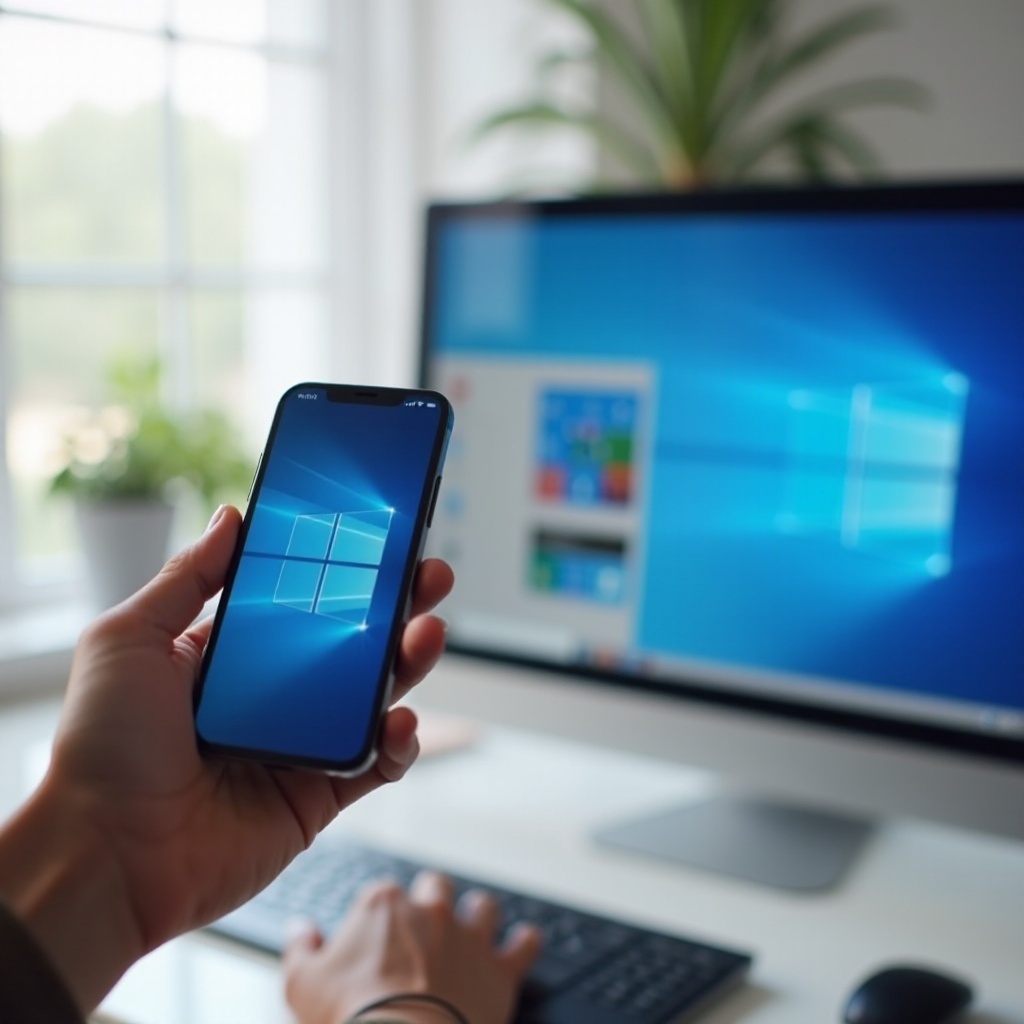
Method 1: Using Built-in Windows Features
Windows 10 and newer versions come with built-in features that make it possible to cast your phone screen. This method is straightforward and does not require additional software.
Requirements for Windows and Phone Compatibility
- Windows 10 or newer on your PC.
- Android phone with screen mirroring capability (often listed as 'Cast' or 'Smart View').
- Both devices connected to the same Wi-Fi network.
Step-by-Step Guide to Using Windows Connect
- On your Windows computer, open the Connect app by typing 'Connect' in the search bar and selecting the app.
- On your Android phone, go to Settings > Display > Cast (this option might be named differently depending on the phone model).
- Ensure that the Wireless display feature is turned on and select your Windows computer from the list of available devices.
Your phone screen should now be mirrored to your Windows computer. This built-in feature is efficient for quick mirroring without the need for additional applications.
Troubleshooting Common Issues
- Ensure both devices are on the same Wi-Fi network.
- Check that your Windows computer supports screen casting by verifying the presence of the Connect app.
- Restart both your phone and computer if you face any connectivity issues.
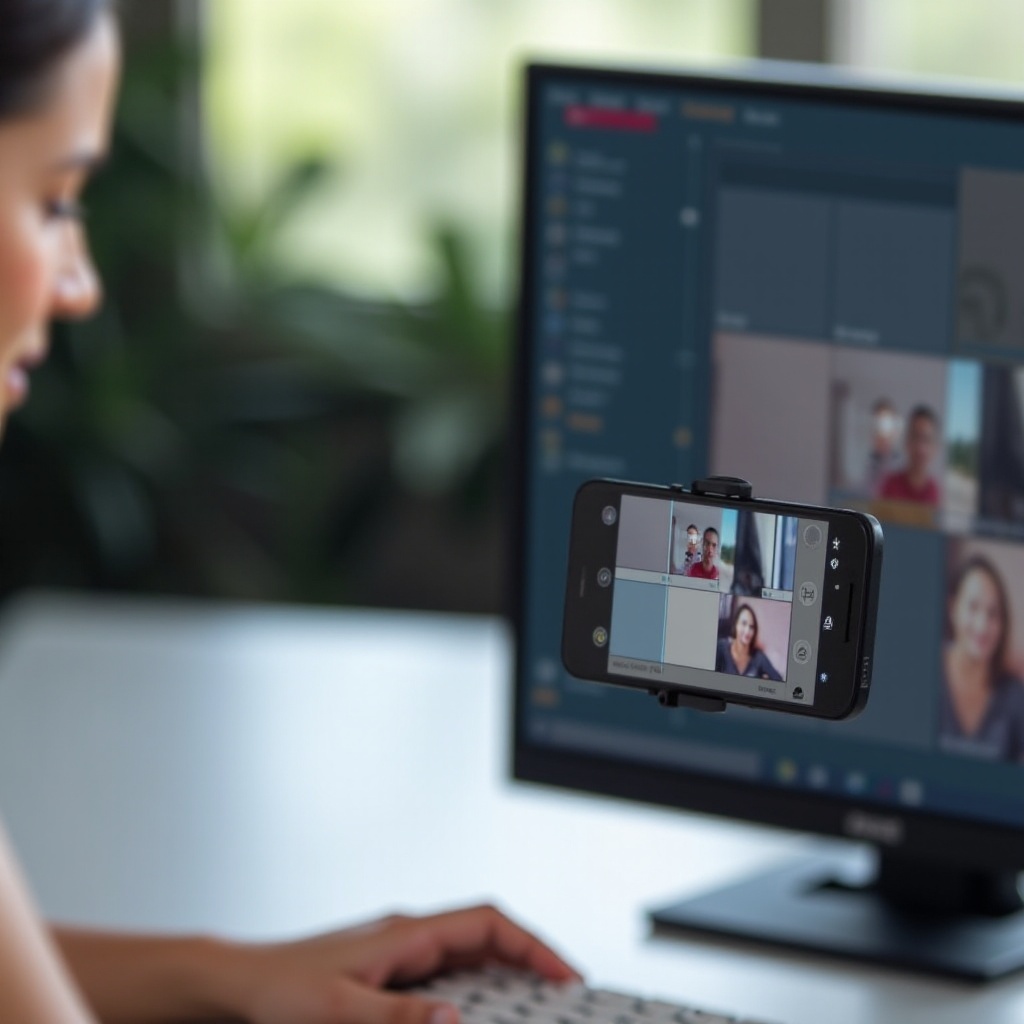
Method 2: Using Third-Party Applications
While the built-in features are great, third-party applications can offer more functionalities and a smoother experience. Here we cover some popular apps like ApowerMirror and Vysor.
Overview of Popular Third-Party Apps
- ApowerMirror: Known for its user-friendly interface and additional features like recording and control.
- Vysor: Offers both free and paid versions with different functionalities, perfect for developers and general users alike.
Installation and Setup Guide for ApowerMirror
- Download and install ApowerMirror on both your phone and Windows computer.
- Open the app on both devices.
- Connect via USB cable or Wi-Fi:
- USB: Enable Developer options and USB debugging on your phone.
- Wi-Fi: Ensure both devices are on the same network and click on your PC's name in the app.
Once connected, your phone screen will be displayed on your computer with additional options like screenshot, recording, etc.
How to Use Vysor for Screen Mirroring
- Download and install Vysor on both devices.
- Open the Vysor app on your Windows computer.
- Connect your phone via USB and enable USB debugging.
- Follow the on-screen prompts to establish the connection.
Vysor provides a smooth experience, essential for users who need more control options.
Method 3: Using Google Chrome and Google Home
Google Chrome and Google Home can also facilitate casting your phone screen to your Windows computer.
Setting Up Google Chrome for Screen Casting
- Ensure you have the latest version of Google Chrome installed on your Windows computer.
- Open Google Chrome, click the three vertical dots (menu) in the upper right corner, and select Cast.
- In your phone's settings, enable Cast and choose your Windows computer.
Connecting Google Home with Your Windows PC
- Set up Google Home on the same network as your Windows computer.
- Open the Google Home app on your phone.
- Select the device you want to cast to and tap on it.
- Choose Cast my screen from the options.
Google Home provides a reliable method, especially useful for users already invested in the Google ecosystem.
Additional Tips for Optimal Screen Casting
Regardless of the method you choose, following these tips can ensure a better casting experience:
- Ensure a Stable Network Connection: A strong and steady Wi-Fi connection is crucial for smooth casting.
- Maximizing Audio and Visual Quality: Close unnecessary applications to avoid lag, and adjust display settings for better resolution.
Conclusion
Casting your phone screen to a Windows computer has never been easier. Whether using built-in Windows features, third-party applications, or Google services, you can find a method that works best for your needs. Try out different methods and find the optimal setup for a seamless experience.
Frequently Asked Questions
Can I Cast My iPhone Screen to a Windows Computer?
Yes, by using third-party applications like ApowerMirror or LetsView, you can cast your iPhone screen to a Windows computer.
Why is My Screen Casting Lagging?
Lag can be due to a weak Wi-Fi signal, interference from other devices, or insufficient system resources. Ensure a strong connection and close unwanted apps.
Are There Any Free Apps for Screen Casting?
Yes, many apps offer free versions with basic features. Vysor and LetsView provide free options for screen casting.