How to Turn On Your Philips TV: A Complete Guide
Introduction
Philips TVs are well-known for their modern design and advanced features, making them a popular choice among consumers. Whether you're setting up a new Philips TV or dealing with a familiar model, knowing how to turn it on effortlessly is essential for an optimal viewing experience. In this guide, we'll explore clear and comprehensive steps to power on your Philips TV, tackle common issues, and optimize its usage.
Understanding Philips TV Models
To begin with, identifying your Philips TV model is crucial. Philips offers a range of televisions, each with distinct functionalities. Knowing your model allows you to make the most of its specific capabilities.
Identifying Your Model: Locate the model number through the rear panel or the user manual. This information is invaluable since different models may have distinct button arrangements.
Importance of Model Features: Each TV model might offer unique features such as smart technology or voice assistant compatibility. Familiarity with these can simplify your TV operations and personalize your experience.
This foundational understanding of your TV's technical aspects ensures a smoother transition to the practical steps of powering on your device.
Step-by-Step Guide to Turning On Your Philips TV
Equipped with knowledge about your model, you're ready to learn precise methods for turning on your television:
Locating the Power Button: Usually found behind or beneath the TV, it's handy for situations where the remote isn't functional.
Using the Remote Control: Ensure your remote's batteries are fresh. Point it directly at the TV and press the power button with a clear line of sight.
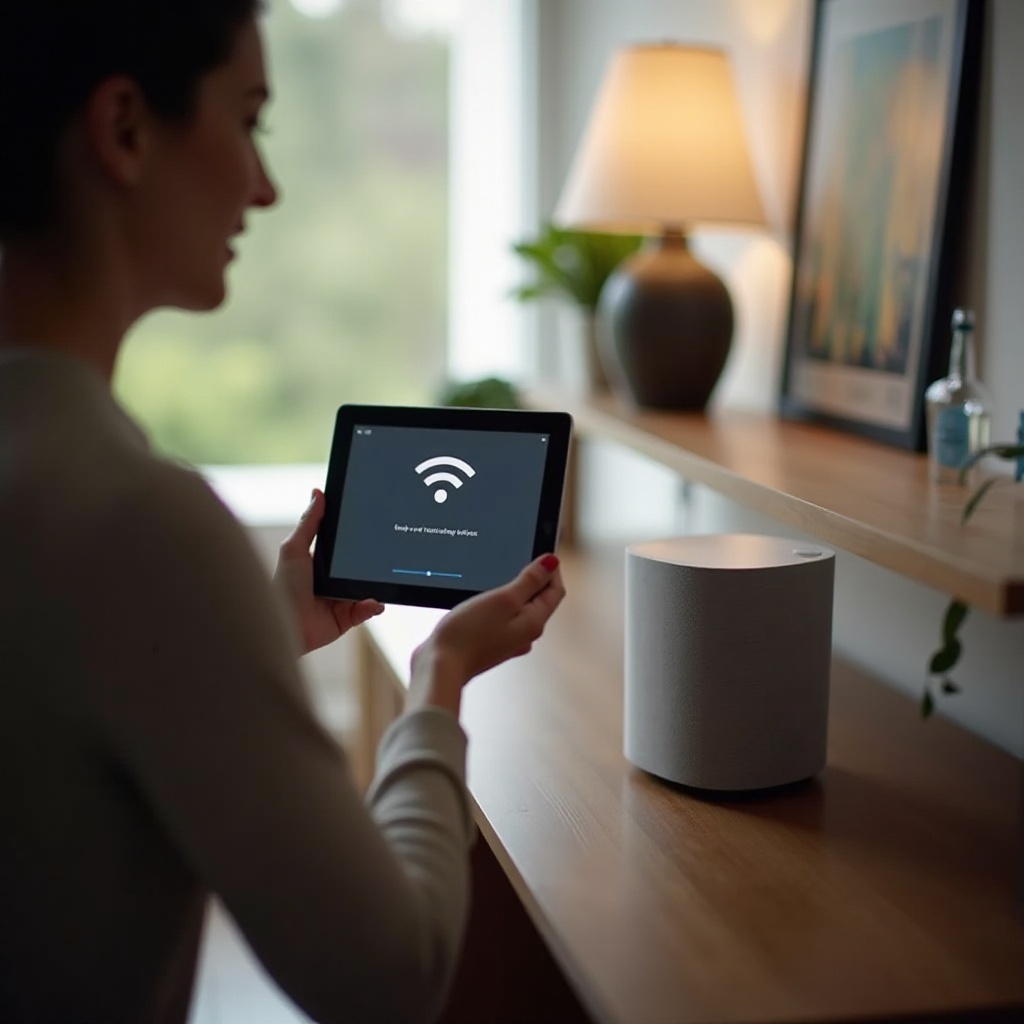
Alternative Methods: Explore smart options such as voice commands or use apps compatible with your TV for remote control.
Understanding these methods not only sets the stage for turning on your TV but also prepares you to address potential start-up troubles that might follow.
Troubleshooting Common Power Issues
Sometimes, turning the TV on might not be straightforward. Here's how to troubleshoot effectively:
If TV Doesn’t Start: Verify power connections and make sure the outlet is operational. If there's no response, try unplugging the TV for a few minutes before retrying.
Remote Control Problems: Check if the batteries need replacement or if the remote needs re-pairing with the TV. Make sure there's nothing obstructing the remote signal.
Having solutions to these common problems can facilitate a seamless operation and offer confidence in using your TV without hiccups.
Optimizing Your Philips TV Experience
Beyond turning on your TV, optimizing its settings can elevate your viewing pleasure.
Utilizing Smart Features: Leverage smart technologies, including integrated apps and voice controls, to streamline your TV functionality and enhance interaction.
Maintenance Tips: Regularly update your TV's firmware and ensure your setup is maintained. Review and tighten connections for the best performance.
These optimizations not only improve start-up routines but also boost overall user satisfaction, ensuring long-term enjoyment and reliability.

Conclusion
By mastering the methods to turn on your Philips TV and address any obstacles, your viewing experience can be smooth and enjoyable every time. Employ these easy steps and maintenance tips to ensure a hassle-free experience, making the most out of your Philips TV and its features without disruptions.
Frequently Asked Questions
How do I reset my Philips TV if it won’t turn on?
To reset, unplug the TV for a few minutes, then reconnect it. If issues persist, refer to the manual for factory reset instructions.
Can I turn on my Philips TV using a mobile app?
Yes, the Philips TV app allows you to power on and control your TV using your smartphone as an alternative to the remote.
Why is my Philips TV not responding to my remote control?
Check for battery issues, signal blockages, or ensure the remote is properly paired with the TV. Replace batteries if needed.