How to Use Any Microphone with Xbox Game Pass
Introduction
Xbox Game Pass has become a cornerstone for gamers seeking an extensive library of games with one affordable subscription. Whether you're engaging in multiplayer battles or cooperative missions, clear communication can significantly enhance your gaming experience. This article will explore how you can use any microphone with Xbox Game Pass, ensuring you have the flexibility you need for optimal in-game communication.
Why Using Any Microphone Enhances Your Xbox Game Pass Experience
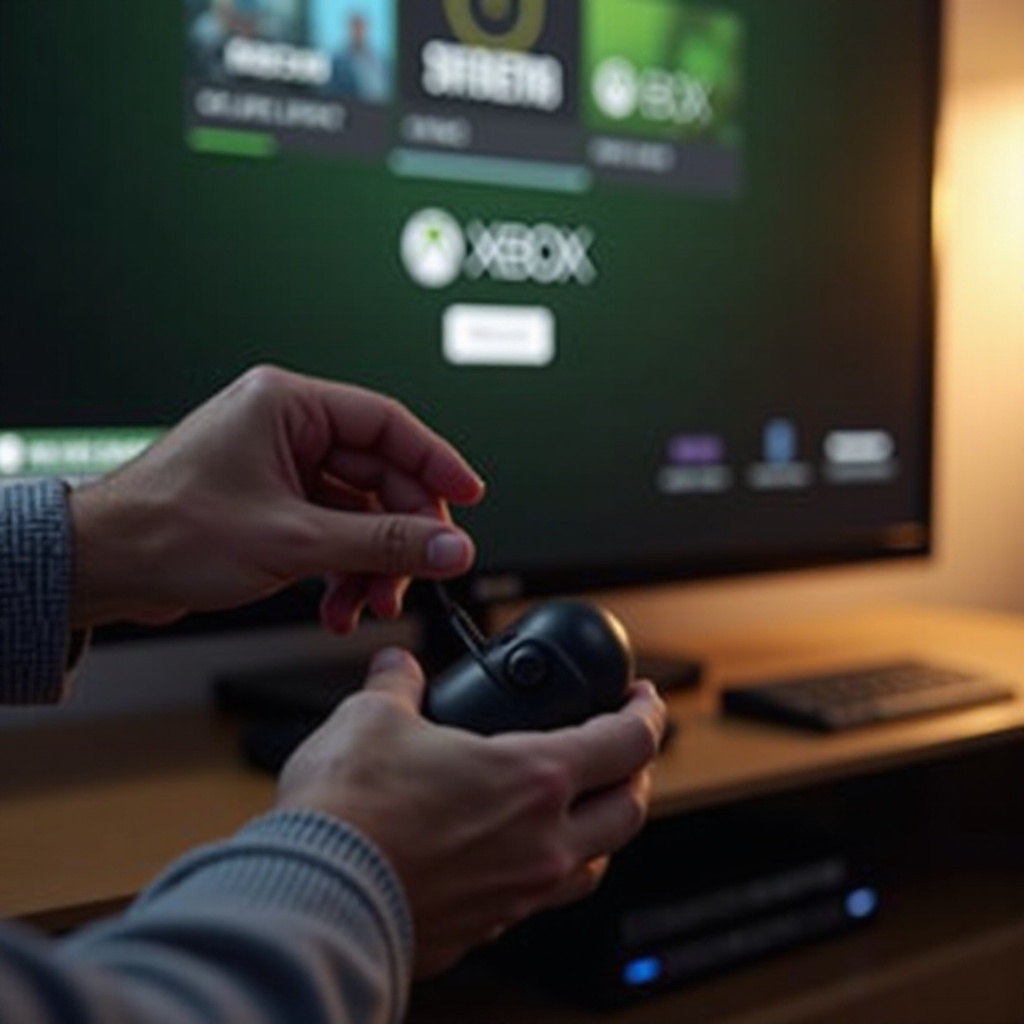
One of the standout features of Xbox Game Pass is its robust multiplayer infrastructure. Having the ability to use any microphone with your setup not only gives you flexibility but also saves you from spending extra money on specialized equipment. With the wide variety of microphones available, being able to use any mic means you can select one that fits your budget and performance needs.
Imagine you're in the middle of an intense game, and your teammates rely on your strategic inputs. The right microphone can be the difference between winning and losing. Ensuring your voice is clear and uninterrupted can make gameplay more enjoyable and effective. Now, let's delve into the types of microphones compatible with Xbox consoles.
Types of Microphones Compatible with Xbox Consoles
Wired Microphones
Wired microphones are the go-to for many gamers due to their affordability and ease of use. These microphones usually connect via the 3.5mm jack on your Xbox controller. They are simple to set up and offer stable, consistent audio quality, making them a reliable choice for steady communication.
Wireless Microphones
Wireless microphones offer the luxury of mobility. These microphones connect via Bluetooth, freeing you from the constraints of wires. However, they require ensuring your Xbox console supports Bluetooth connectivity and might need additional steps for pairing. They are ideal for those who prefer a clutter-free setup.
USB Microphones
USB microphones provide superior sound quality and are often used by streamers and professional gamers. Connecting a USB microphone to an Xbox console might require an adapter or additional setup steps. They are perfect for users who prioritize high-quality audio and are willing to invest in slightly more complex setups.
Step-by-Step Guide to Connect and Configure Your Microphone
Connecting Wired Microphones
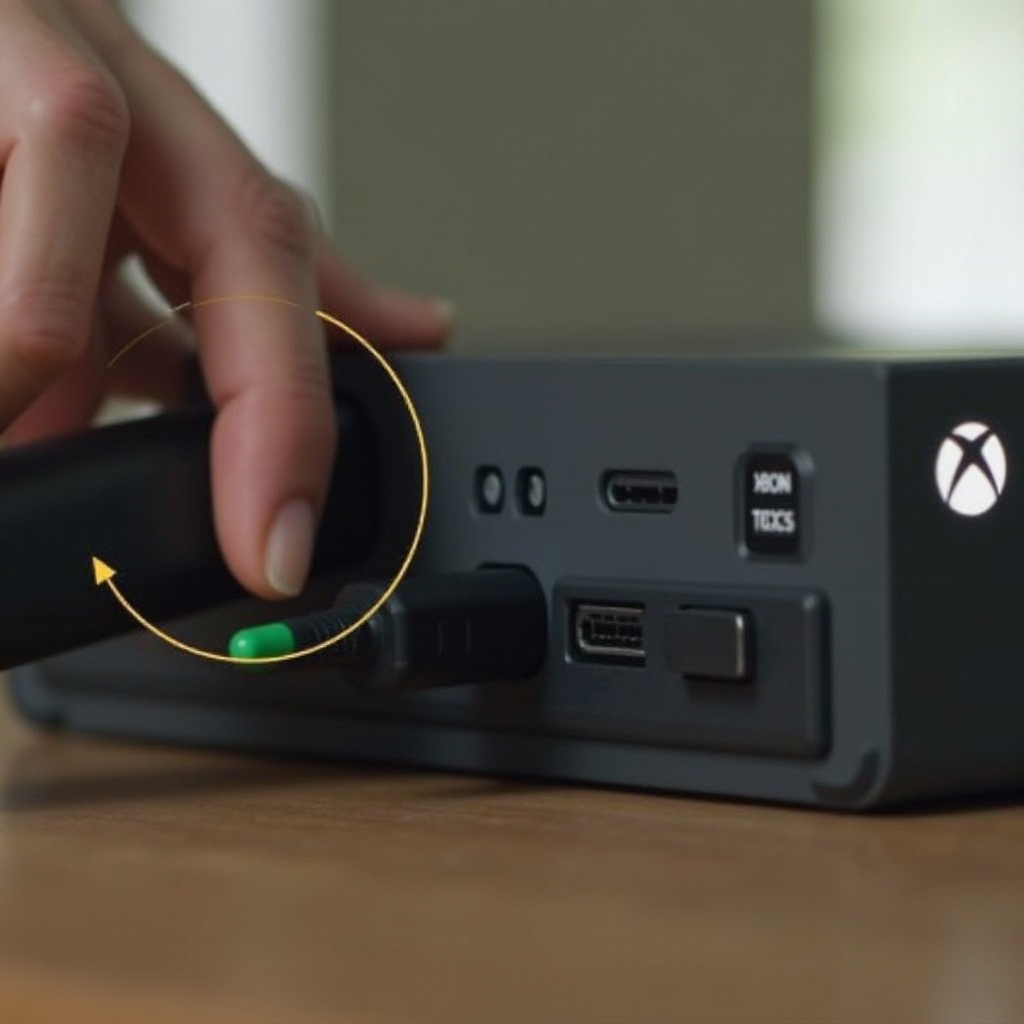
- Plug your microphone into the Xbox controller's 3.5mm audio jack.
- Open the Xbox Dashboard and navigate to the 'Settings' menu.
- Select 'Devices & connections' then 'Accessories.
- Adjust the microphone volume and chat mixer settings to your preference.
Pairing Wireless Microphones
- Ensure your Xbox console supports Bluetooth.
- Turn on your wireless microphone and put it in pairing mode.
- Go to 'Settings,' then 'Devices & connections,' and select 'Bluetooth.
- Find your microphone in the list of available devices and select it to pair.
Configuring USB Microphones
- If your microphone requires an adapter, connect it to the Xbox console.
- Plug in the USB microphone via the adapter to your Xbox console.
- Navigate to 'Settings,' then 'Devices & connections.
- Select 'Audio devices' and configure your USB microphone settings.
Once you have successfully connected your microphone, it's essential to keep everything running smoothly.
Troubleshooting Common Microphone Issues
Mic Not Detected
- Verify all physical connections and ensure the mic is securely plugged in.
- Restart your Xbox console to refresh system recognition.
- Check if the microphone is enabled in the Xbox 'Settings' under 'Audio devices.
Poor Audio Quality
- Ensure the microphone is positioned well and not obstructed.
- Check for interference from other electronic devices.
- Use the chat mixer settings to balance game and chat audio better.
Latency Problems
- If using a wireless microphone, minimize the distance between your mic and the console.
- Close unnecessary apps on the Xbox to free up system resources.
- Some high-quality USB microphones come with software settings to reduce latency.
By addressing these common issues, you ensure your microphone performs optimally for every gaming session.
Tips for Optimizing Microphone Performance
Proper Microphone Placement
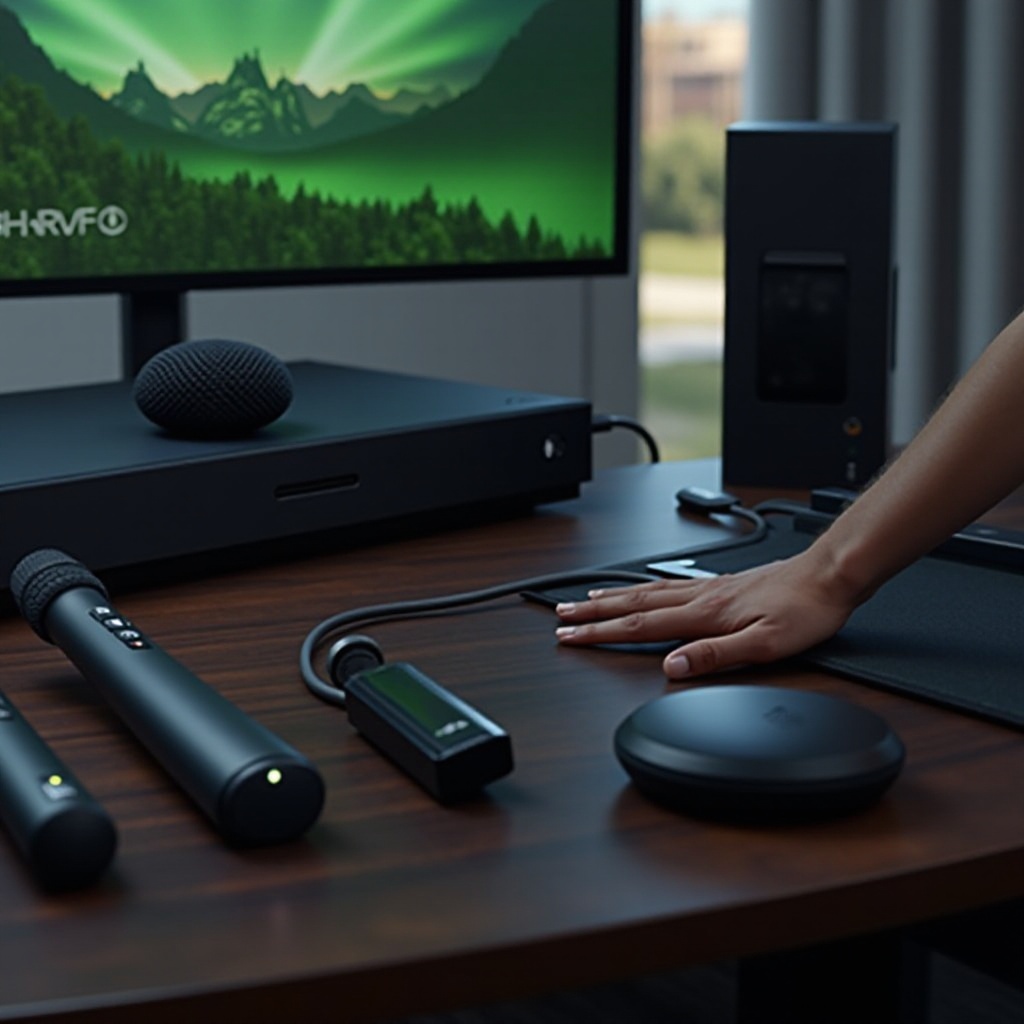
Place the microphone at a reasonable distance from your mouth (around 6-12 inches). This positioning helps capture clear audio without distortion or excessive background noise.
Reducing Background Noise
- Use noise-cancelling features if available on your microphone.
- Create a quiet gaming environment by minimizing external noise and disturbances.
- Accessories like pop filters can help reduce ambient sound and improve clarity.
Recommended Accessories
- Pop Filters: Help eliminate problematic plosive sounds.
- Mic Stands: Provide better placement and stability.
- Sound Isolation Shields: Enhance audio quality by reducing unwanted acoustic reflections.
Following these tips will help you get the most out of your microphone setup.
Best Microphones for Xbox Game Pass Users
Budget Microphones
- Beexcellent GM-1: Affordable and offers quality sound.
- Turtle Beach Recon 70: Known for good performance at a low cost.
Mid-Range Options
- HyperX Cloud Stinger: Excellent build quality and sound.
- SteelSeries Arctis 3: Comfortable and reliable with immersive audio.
High-End Microphones
- Blue Yeti X: Superior sound quality ideal for streaming.
- Astro A50: High performance with exceptional clarity and range.
Selecting the right microphone depends on your budget and specific needs. The listed options provide a good balance between cost and performance.
Conclusion
Using the right microphone with Xbox Game Pass enhances your gaming experience by providing clear communication and better teamwork. Whether you prefer wired, wireless, or USB microphones, you have various options tailored to fit your budget and performance needs. Proper setup and troubleshooting can ensure that your microphone works flawlessly, and using the recommended models can further improve your gaming sessions.
Frequently Asked Questions
Can I use a USB microphone with Xbox Game Pass?
Yes, you can use a USB microphone, but you may need an adapter and additional configuration through the Xbox 'Settings' menu.
How do I test my microphone on Xbox?
Navigate to 'Settings,' then 'Devices & connections,' select 'Audio devices,' and use the microphone test feature to check sound levels.
What should I do if my microphone is not working?
First, check all connections and ensure the mic is enabled in the settings. Restart your Xbox and refer to the troubleshooting section to resolve common issues.