Optimizing Your Gaming Setup with the Yamaha RX-V381 and Xbox Series X
Introduction
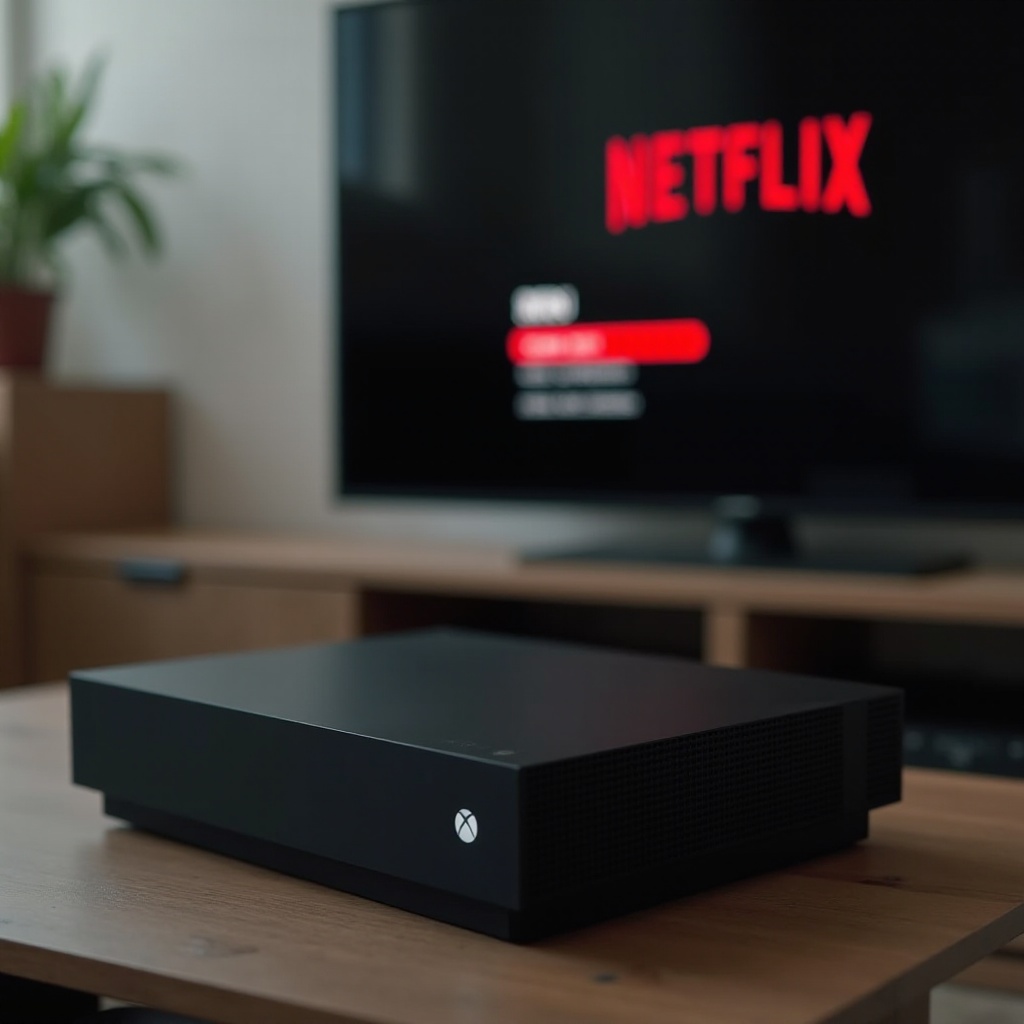
Combining the Xbox Series X with the Yamaha RX-V381 can create a powerful and immersive gaming experience. These devices, when used together, offer superior audio and visual quality, elevating your gameplay to a new level. This guide will explore everything you need to know about setting up and optimizing your Yamaha RX-V381 with the Xbox Series X.
Overview of the Yamaha RX-V381
Key Features and Specifications
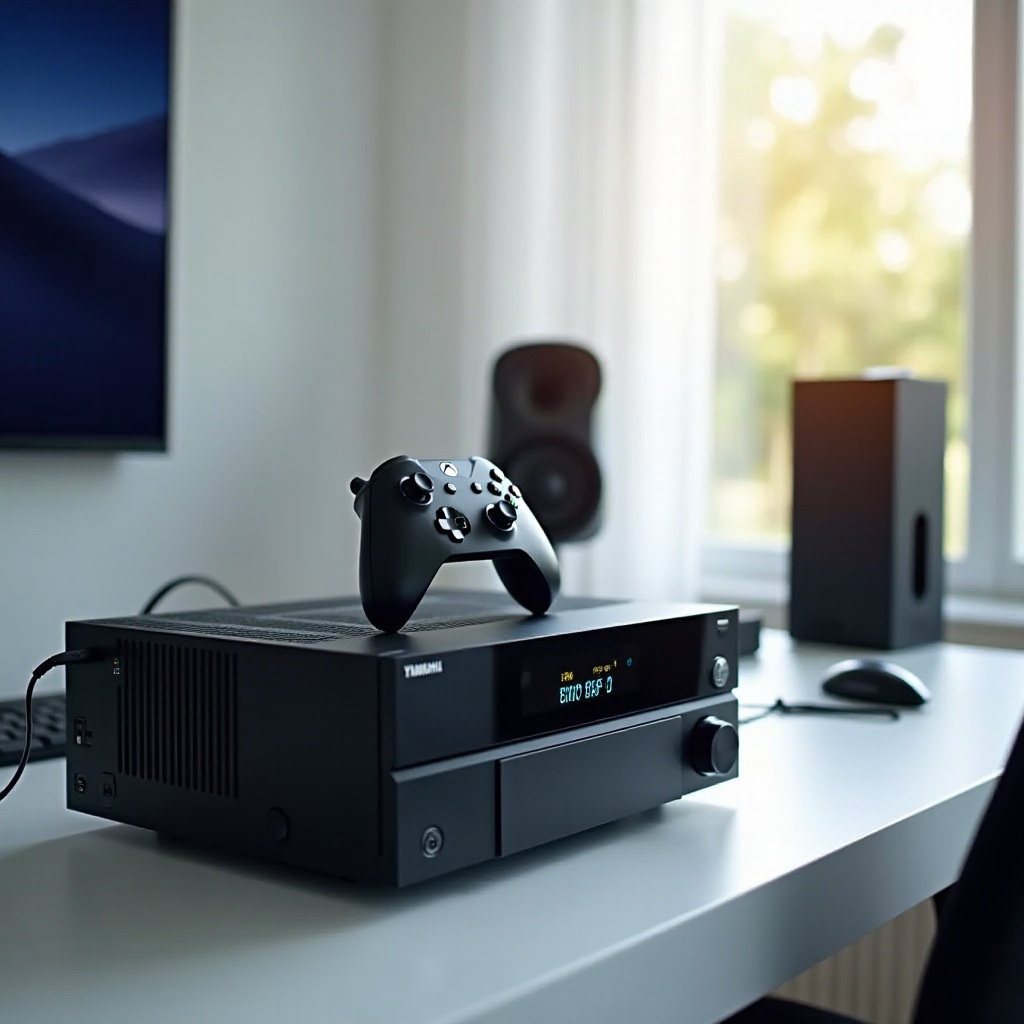
The Yamaha RX-V381 is renowned for its high-quality audio output and advanced features suitable for gaming. It offers:- 4 HDMI inputs and 1 HDMI output with HDCP 2.2 Support- 4K Ultra HD with HDR10 and Dolby Vision- Bluetooth for wireless music streaming- Discrete amp configuration and a 5.1-channel surround sound systemThese features ensure that every audio cue in your game is clear and lifelike, providing an immersive experience.
Benefits for Gamers
For gamers, the Yamaha RX-V381 offers several advantages:- Enhanced sound quality with built-in surround sound capabilities.- Multiple HDMI inputs allow easy switching between gaming consoles and other devices.- 4K Ultra HD compatibility ensures that your game's graphics look sharp and vibrant.Moving on from the capabilities of the Yamaha RX-V381, let's dive into the specifics of the Xbox Series X and understand why it's a perfect match.
Xbox Series X: A Next-Gen Console Experience
Advanced Features
The Xbox Series X stands out with its cutting-edge features and robust performance:- Custom AMD Zen 2 processor- 12 teraflops of GPU power- 16GB of GDDR6 RAM- 1TB NVMe SSD for ultra-fast load times- Xbox Velocity Architecture for quick resumes
Gaming Advantages
These features contribute significantly to the overall gaming experience:- Stunning visuals with true 4K resolution- High frame rates up to 120 FPS for smooth gameplay- Quick loading times and seamless game transitions- Enhanced multiplayer capabilities with low latencyWith an understanding of both devices' features and benefits, let’s proceed to set up the Yamaha RX-V381 with the Xbox Series X.
Setting Up Yamaha RX-V381 with Xbox Series X
Connection Guide
Setting up your Yamaha RX-V381 with your Xbox Series X is straightforward. Here’s a step-by-step guide:1. Connect an HDMI cable from the HDMI OUT port on the Xbox Series X to an HDMI IN port on the RX-V381.2. Connect another HDMI cable from the HDMI OUT port on the RX-V381 to your TV.3. Ensure both the receiver and the Xbox Series X are powered on.4. Select the appropriate HDMI input on the RX-V381 to which the Xbox Series X is connected.5. Follow the on-screen instructions on your TV to complete the setup.
Best Practices for Configuration
To ensure everything runs smoothly, follow these tips:- Enable HDMI-CEC for streamlined control between devices.- Adjust your Xbox Series X settings to match the capabilities of your receiver and TV (e.g., 4K and HDR).- Regularly update the firmware for both the RX-V381 and Xbox Series X to benefit from the latest features and improvements.With the setup complete, it’s time to focus on enhancing the audio quality of your gaming experience.
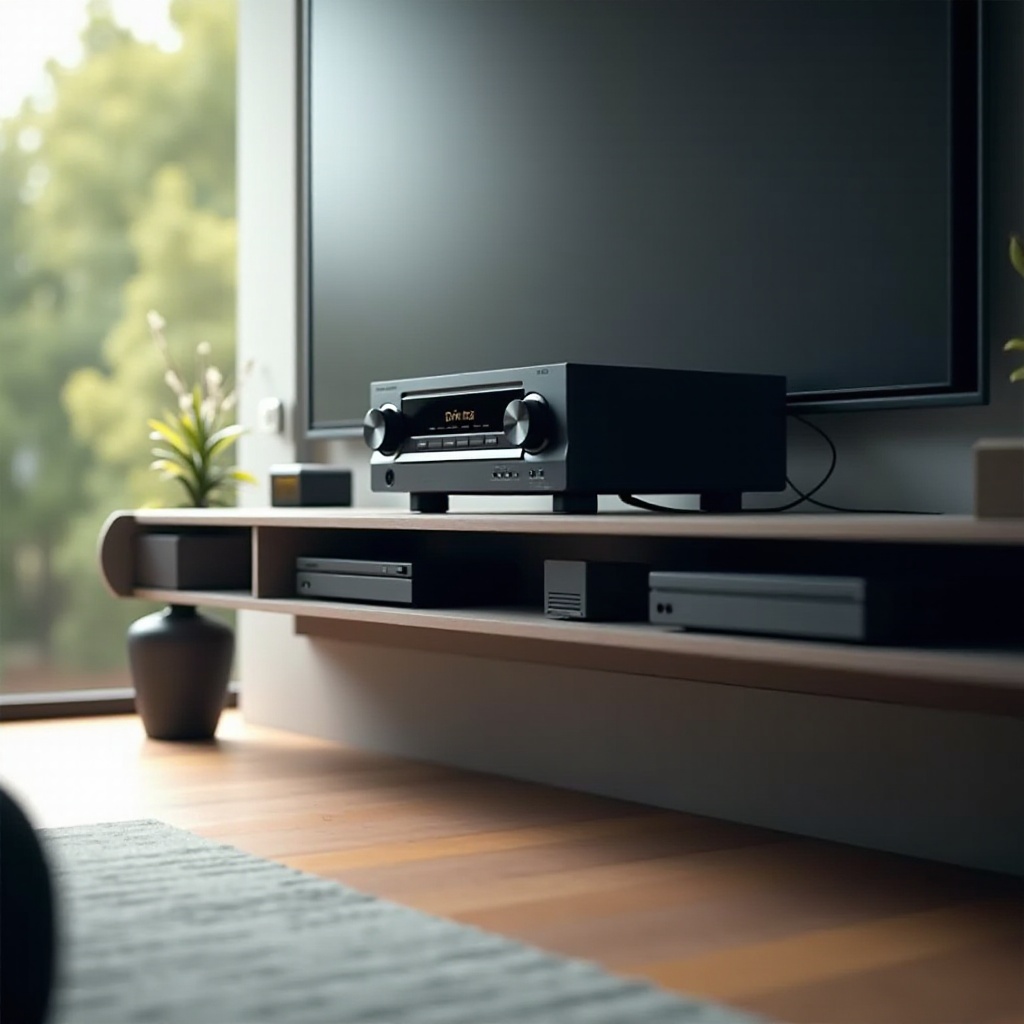
Enhancing Audio Quality with Yamaha RX-V381
Recommended Audio Settings
Customizing the audio settings on your Yamaha RX-V381 can drastically improve your in-game audio:- Use the 'Straight' mode for pure audio signal processing, ideal for gameplay.- Adjust the equalizer settings to boost low frequencies for more impactful sound effects.- Experiment with surround sound modes to find the perfect setup for your game.
Sound Modes for Different Games
Different genres benefit from different audio settings:- For first-person shooters, use 'Surround: AI' to get directional cues.- In RPGs, 'Hall in Munich' can provide an immersive environment.- Racing games benefit from the 'Enhanced Bass' mode to feel engine roars and crashes.Next, let's optimize the visual output to match the audio quality.
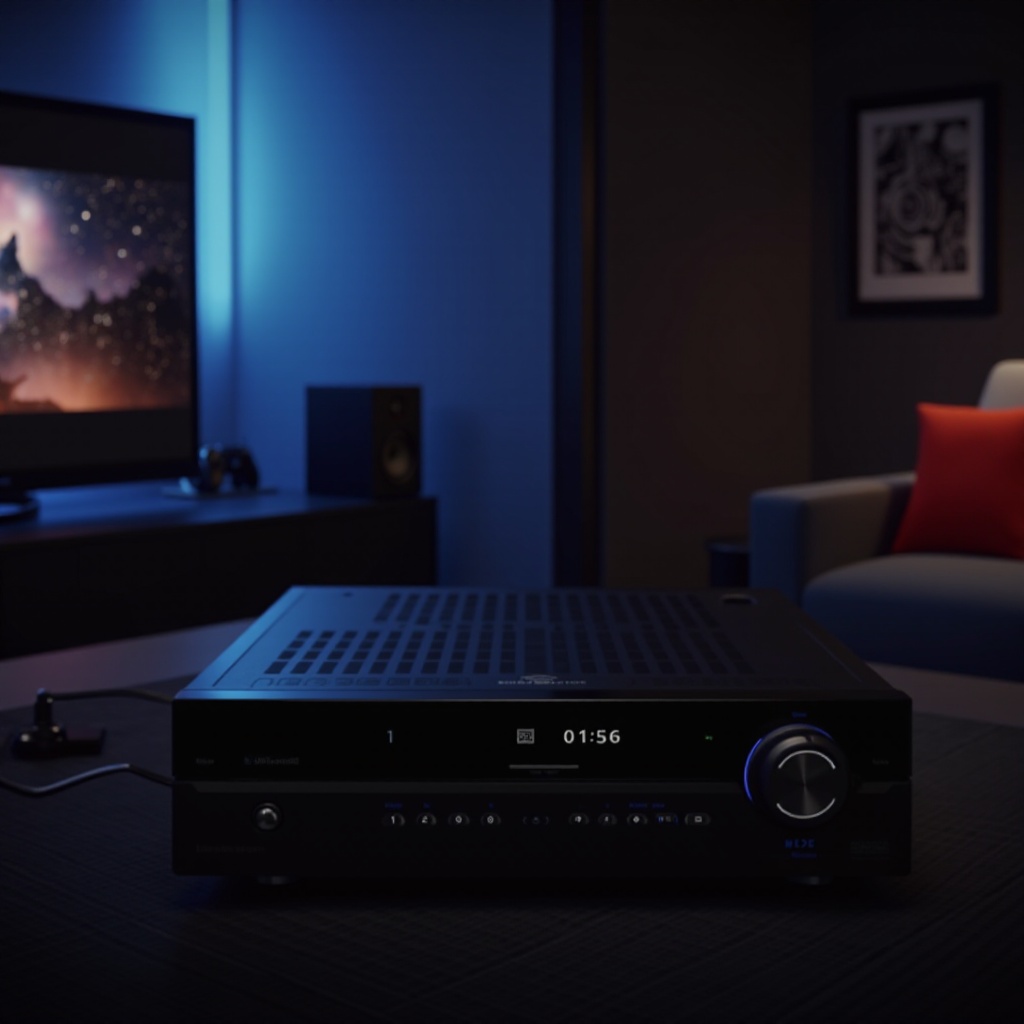
Maximizing Visual Output
4K and HDR Settings
Activate these settings for the best visual experience:- On your Xbox Series X, go to Settings > General > TV & display options.- Enable '4K UHD' and 'Allow HDR10'.- On the RX-V381, ensure that the HDMI input mode is set to the highest bandwidth option.
Calibration Tips
For the best results, calibrate your display with the following tips:- Use a display calibration tool to adjust brightness, contrast, and color levels.- Set your TV’s game mode to reduce input lag.- Adjust the RX-V381’s video processing settings to ensure smooth visuals.Optimizing the audio and visual settings can make a significant difference, but sometimes you might encounter some issues. Let’s discuss how to troubleshoot common problems.
Troubleshooting Common Issues
Connectivity Problems
- Ensure all cables are securely connected.
- Try using different HDMI ports or cables.
- Verify that your TV supports the resolutions and refresh rates you are trying to use.
Performance Issues
- Clear the cache on both the Xbox Series X and RX-V381.
- Restart your devices regularly to keep them running smoothly.
- Make sure no other devices are interfering with the HDMI signal.
Conclusion
Using the Yamaha RX-V381 with the Xbox Series X can vastly improve your gaming experience. With the right setup and optimization, you can enjoy stunning visuals and immersive sound that bring your games to life. By following the steps and tips mentioned, you'll be on your way to creating the ultimate gaming setup.
Frequently Asked Questions
How do I connect my Xbox Series X to Yamaha RX-V381?
Connect the HDMI OUT port on the Xbox Series X to an HDMI IN port on the RX-V381. Then connect the HDMI OUT port on the RX-V381 to your TV. Power on the devices and follow the on-screen instructions.
What are the best audio settings on Yamaha RX-V381 for gaming?
Use the 'Straight' mode for pure signal processing, adjust the equalizer to boost low frequencies, and experiment with surround sound modes to find the best setup for your game.
Can Yamaha RX-V381 enhance 4K HDR experience with Xbox Series X?
Yes, the RX-V381 supports 4K Ultra HD with HDR10, enhancing your gaming visuals when configured correctly with the Xbox Series X. Enable these settings in both devices’ settings menus and calibrate your display accordingly.