How to Turn Off Voice Assistant on Your Sony TV for Better Control
Introduction
Voice assistants on smart TVs offer hands-free control with voice commands, providing convenience for many users. However, the continuous listening feature can raise privacy concerns or lead to unwanted activations. As a result, some individuals prefer the reliability of manual control. If you've decided to turn off the voice assistant on your Sony TV, understanding how to navigate the process will ensure a personalized viewing experience tailored to your preferences.
Understanding Sony TV Voice Assistant Features
Sony TVs incorporate advanced voice recognition technology, allowing users to manage their devices without using a remote. These built-in voice assistants enable tasks like changing channels, adjusting the volume, and launching apps with simple spoken words. As helpful as these capabilities may be, they can also lead to concerns regarding privacy and device behavior. By knowing the full range of features, users can make informed decisions about utilizing or disabling them, weighing the benefits against their personal comfort and security concerns.
Reasons to Turn Off Voice Assistant on Sony TVs
Privacy is a significant factor for opting out of using voice assistants on Sony TVs. While these devices are designed to listen only for commands, reports of accidental activations cause hesitation. Additionally, some users find manual controls more intuitive and reliable, especially if voice commands are frequently misunderstood or create disturbances. Focusing on a traditional viewing environment can enhance your entertainment experience, free from unexpected interruptions or the need to repeat commands. This choice allows for greater control and peace of mind in your home entertainment setup.
Step-By-Step Guide to Turning Off Voice Assistant
To disable the voice assistant on your Sony TV, follow these instructions:
1. Access the TV Settings: Power on your Sony TV and press the 'Home' button on your remote to open the main menu.
2. Navigate to Accessibility Options: Select 'Settings' and proceed to 'Device Preferences' or directly to 'Accessibility,' depending on your model.
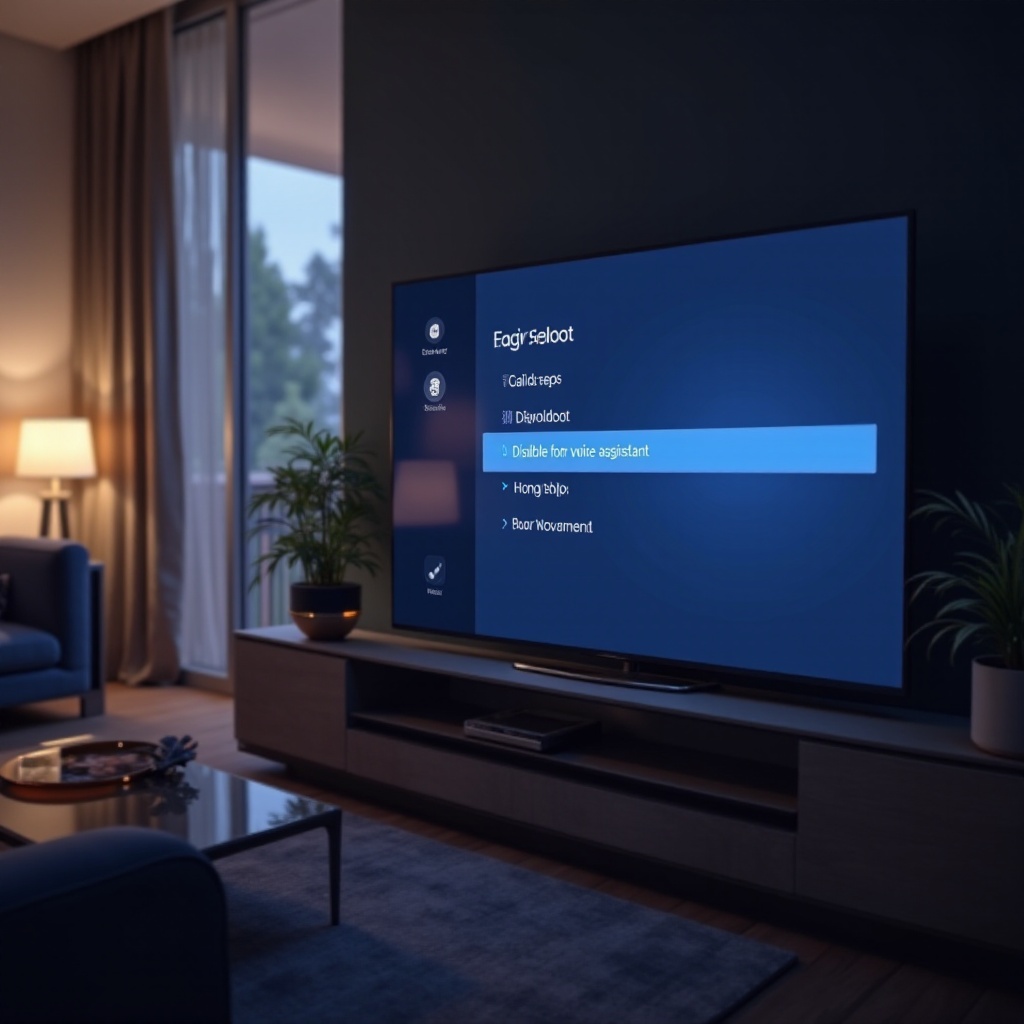
3. Disabling the Voice Assistant Feature: Within the Accessibility menu, find options like 'TalkBack,' 'Screen Reader,' or 'Voice Assistant.' Open the settings and toggle the feature to 'Off.
By carefully completing these steps, your TV will no longer respond to voice commands, allowing for a distraction-free viewing experience.
Troubleshooting Common Issues When Disabling Voice Assistant
While disabling the voice assistant is usually straightforward, some users encounter issues such as unsaved settings or reactivation after updates. Here are some troubleshooting tips:
- Ensure your TV software is updated, as outdated software might cause setting errors.
- Confirm you have correctly toggled the right Accessibility menu option.
- Restart your TV and retry disabling the assistant if it continues active. For persistent problems, consult the user manual or contact Sony support for guidance.
Addressing these challenges ensures a seamless transition to a manual control-based entertainment setup, enhancing user satisfaction.
Maximizing Your Sony TV Experience Without Voice Assistance
Without relying on voice commands, you can still achieve a rich Sony TV experience through alternative control methods. Utilize the physical remote, which offers precise navigation and adjustments. Many users also benefit from mobile apps compatible with Sony TVs, replicating remote functionalities on a smartphone for ease of use. Customizing settings like picture, sound, and parental controls can further amplify your television setup, ensuring an immersive and tailored experience.
Future Trends in TV Control and Voice Technology
The realm of TV control is rapidly evolving, promising advanced integration between devices and tailored user interaction. As voice technology advances, users will expect more transparency and privacy options. Sony and other manufacturers are likely to offer enhanced customization capabilities, allowing users to select the features that reflect their comfort and security preferences the best. Staying informed on these advancements will enable you to adapt your devices to new functions, enhancing your interaction with technology while maintaining control over your environment.
Conclusion
Turning off the voice assistant on your Sony TV can enhance privacy and bring back the simplicity of a manual control setup. This guide empowers you to navigate your TV settings confidently, creating an experience uniquely suited to your desires. Embracing these options showcases the flexibility of modern smart technologies, providing users the power to shape their environments to fit their comfort level and preferences.
Frequently Asked Questions
How do I re-enable the voice assistant if needed?
To re-enable, access the Accessibility menu, find the voice assistant option, and toggle it back to 'On'.
Will turning off the voice assistant affect other TV functions?
Disabling the voice assistant only impacts voice command features and does not affect other TV functions.
Can I use third-party voice assistants with my Sony TV after disabling the built-in one?
Yes, third-party voice assistants like Alexa or Google Assistant can be used through compatible devices.