Understanding the Sonos Solid Green Light: A Comprehensive Guide
Introduction
Sonos speakers offer a superior sound experience, enhanced by intuitive controls and smart indicators like the solid green light. While generally signifying that your speaker is powered and ready to use, the green light can appear under diverse conditions, prompting owners to seek clarity on its implications. This guide delves into the significance of the green light, explores various scenarios that trigger it, and offers solutions to ensure that your Sonos system operates smoothly and efficiently.
What the Sonos Solid Green Light Indicates
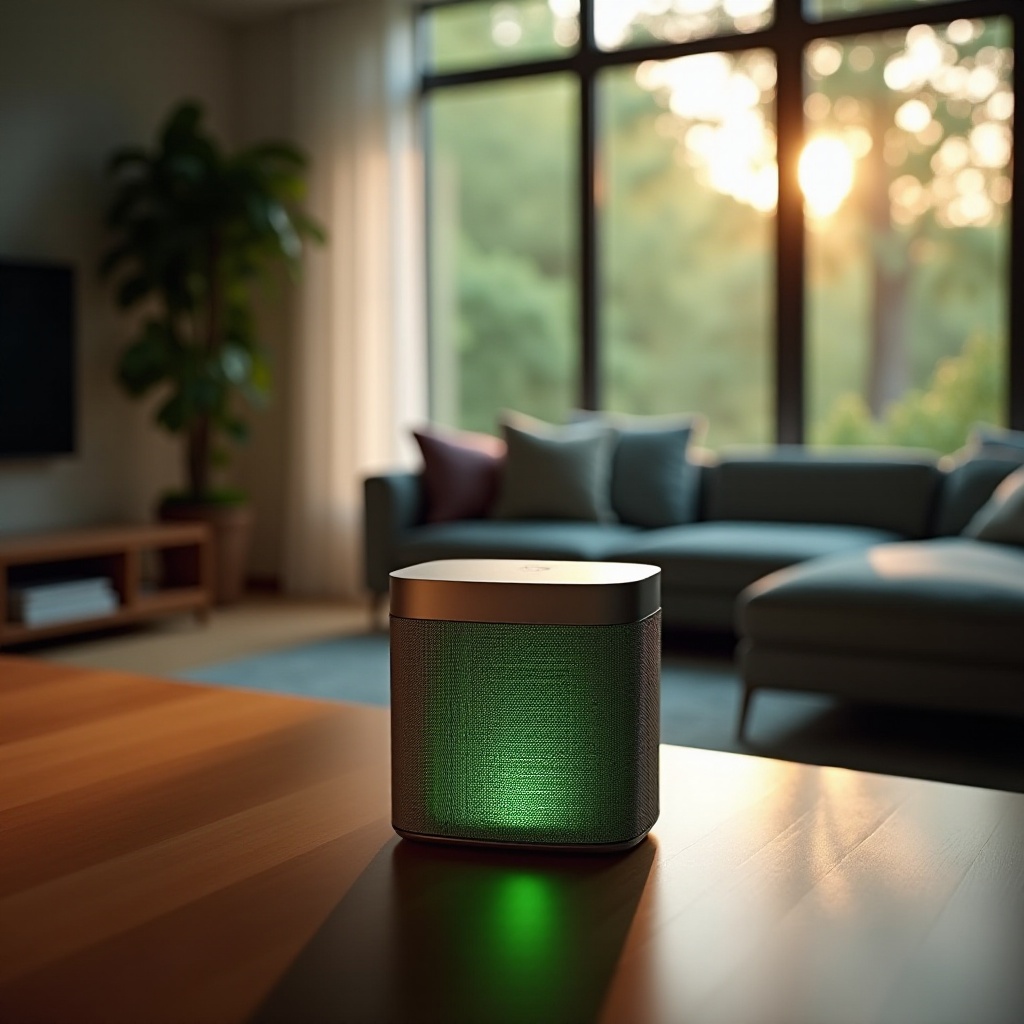
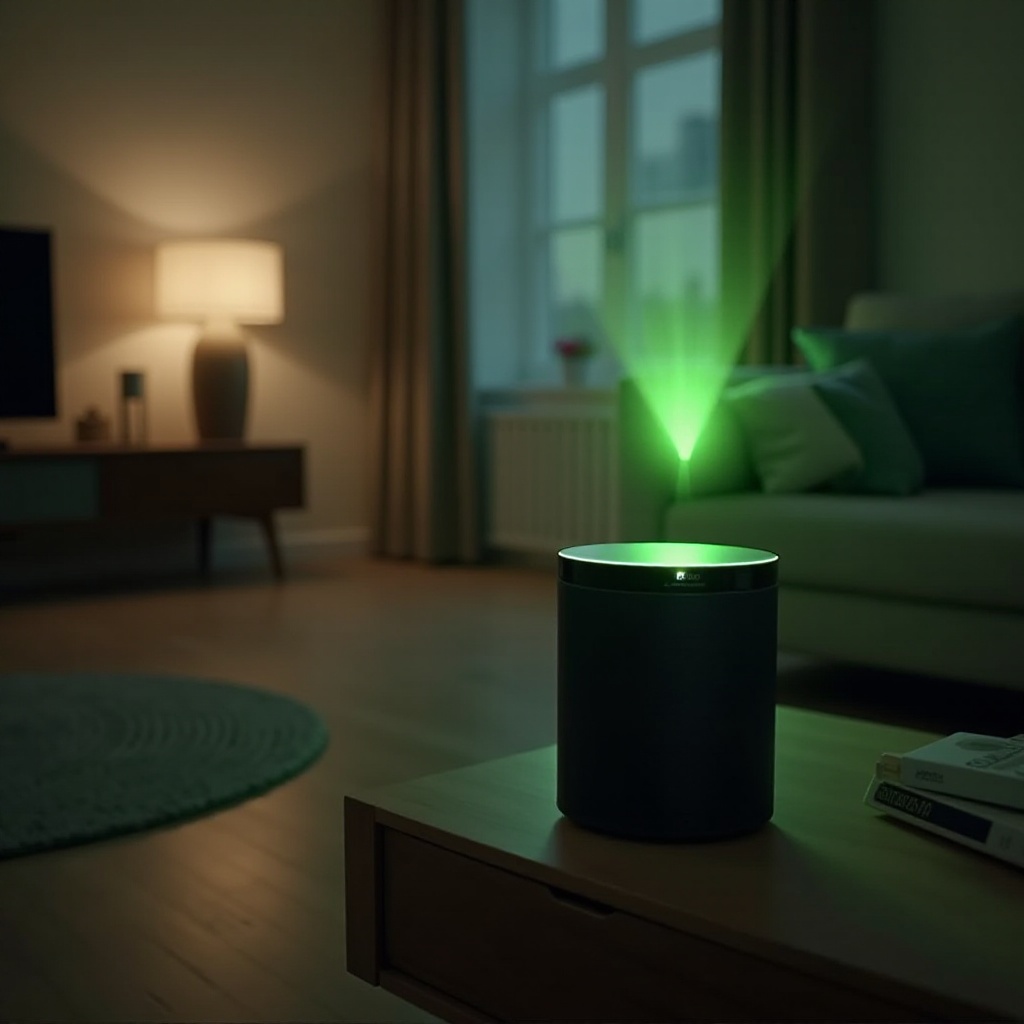
The solid green light on a Sonos speaker represents its operational status, signaling to users that the device is online and ready for audio playback. It's a reassuring indicator of power status and functionality, but might sometimes accompany issues such as connectivity disruptions, thus warranting further evaluation.
Understanding the green light's meaning enables users to differentiate between normal operation and potential technical challenges that need addressing. Whenever a green light is present alongside malfunctions, recognizing the source and context becomes essential in managing system performance efficiently.
Common Scenarios for the Solid Green Light
When encountering a solid green light on your Sonos speaker, several scenarios could be at play. Familiarizing yourself with these possibilities helps identify and mitigate trouble areas before they escalate:
Network Connectivity Issues: Despite a green light indicating power status, your wireless network might fail to support seamless streaming. A Wi-Fi review is required to confirm strong signal strength.
Device Pairing Status: New connections or configuration changes lead to green light indications. Always verify successful pairing through checks on your mobile device or control system.
Operational Modes: The solid green light serves as confirmation of routine operational state. Regular checks within the Sonos app help ensure settings remain optimized, safeguarding against unwanted interruptions.
By linking device readiness with these scenarios, owners proactively address common sources of disruption, maintaining pristine audio quality.
How to Troubleshoot the Sonos Solid Green Light
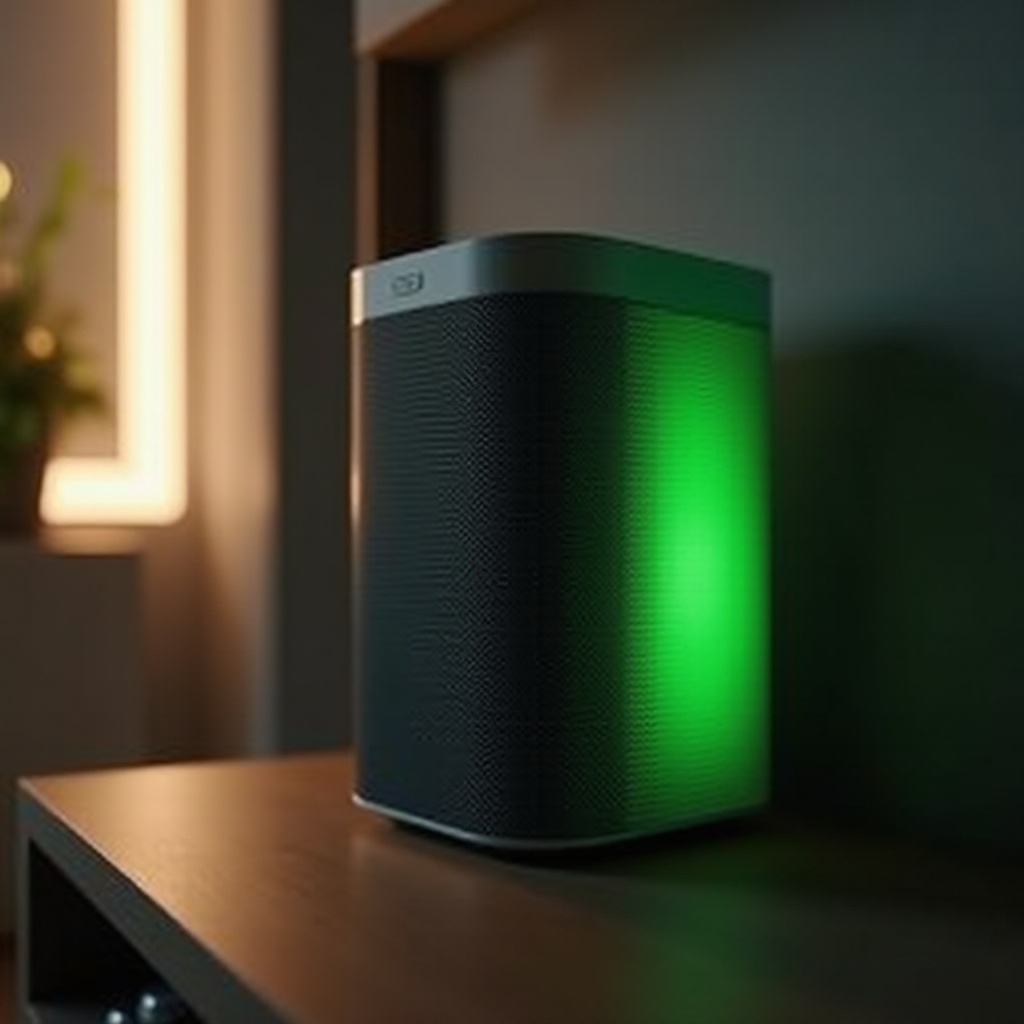
Approaching issues when your Sonos speaker displays a solid green light involves methodical troubleshooting steps. Consider the following suggestions to resolve problems:
Check Wi-Fi Connection: Use your Sonos app or directly inspect router settings to verify network alignment, reducing playback buffering.
Sonos App Diagnostics: Utilize diagnostic tools and feedback within the Sonos app, discerning any conflicts related to device operation or settings.
Resetting Your Sonos Speaker: For lingering issues, begin with a speaker reboot by disconnecting power for 10 seconds. If difficulties persist, execute a factory reset to restore initial configurations.
Adopting these measures often clarifies and rectifies the root causes of green light-related complications, thus refining your speaker's functionality.
Best Practices for Sonos Speaker Maintenance
Beyond addressing light indicators, maintenance habits cultivate longevity and performance for Sonos devices. Consider these practices:
Regular System Updates: Keep your app and product firmware current. Updated systems reduce vulnerabilities and integrate advanced features.
Optimizing Speaker Placement: Thoughtful positioning limits audio interference and capitalizes on acoustic design elements, creating immersive listening spaces.
Utilizing Sonos Support Resources: Tap into Sonos's extensive support network for guidance, including forums, documentation, and dedicated customer services.
By embedding these habits into your regular maintenance routine, you enhance device durability, achieving consistently high performance.
Conclusion
Comprehending the Sonos solid green light and the conditions in which it appears is pivotal for optimal speaker management. As users recognize and reconcile these indicators alongside routine practices, speaker efficacy and reliability improve remarkably. By fostering a proactive approach to updates, positioning, and diagnostics, your sound environment thrives, guaranteeing endless enjoyment of high-quality audio through Sonos's superior technology.
Frequently Asked Questions
What do other light indicators on Sonos speakers mean?
Different lights signal various states, such as pairing mode, errors, or updates in progress, which can be clarified in the Sonos manual or app.
How do I perform a factory reset on my Sonos speaker?
To initiate a factory reset, hold the Join button while plugging in the power until you see an amber light, then follow on-screen instructions in the app.
When should I contact Sonos support for persistent issues?
Reach out to Sonos support if troubleshooting fails and your device exhibits ongoing network or operational problems despite efforts.