TCL TV Set Up: A Comprehensive Guide for Optimal Performance
Setting up a TCL TV involves more than merely plugging it into the wall. Proper configuration is essential to enjoy a high-quality viewing experience and to ensure the longevity of your TV. This guide will walk you through every step, from selecting the right model to troubleshooting potential issues, ensuring your TCL TV performs at its best.
Introduction
TCL TVs are renowned for their impressive features and affordability. Whether you've selected a 4K or an 8K model, setting it up correctly is crucial. Proper installation impacts picture quality and overall usability, delivering the high-performance experience you've expected. This guide will assist you with every step, from unboxing to troubleshooting.
Choosing the Right TCL TV Model
Before setting up, ensure you've selected the ideal TCL model for your needs.
- Purpose: Determine whether your primary focus is streaming, gaming, or cable. Models vary with features tailored to each.
- Room Size: Larger rooms often require bigger screens for optimal viewing. TCL offers models from 40 to 85 inches.
- Budget: Find a model that offers the best value within your price range. TCL provides budget-friendly options without compromising quality.
Selecting the appropriate model simplifies your setup process and maximizes your TV's benefits.
Initial Physical Setup
With the right model chosen, it's time to unbox and set up your TCL TV.
- Unboxing and Assembling Your TCL TV: Carefully unpack your TV with assistance to prevent damage. Assemble the stand or prepare for wall-mounting using the included manual.
- Connecting Devices and Cables: Before powering on, connect all necessary cables. Utilize HDMI and USB ports for additional devices, organizing cables neatly to avoid clutter.
Following a successful assembly and connection, proceed to configure display settings.
Configuring Display Settings
Achieving optimal picture quality can greatly enhance your viewing experience. Here's how to configure your settings:
- Basic Picture Settings: Start with basic adjustments like brightness, contrast, and color. Utilize presets such as Sports, Movies, and Gaming modes.
- Advanced Calibration Tips for Different Uses: For movie enthusiasts, a director's intent setting is ideal. Gamers should explore game-specific settings for variable refresh rates and reduced input lag. Consider a calibration tool for professional-level adjustments, if necessary.
Once display settings are optimized, the next step involves setting up audio.
Setting Up Audio
A visually engaging setup deserves equally impressive sound. Configure audio according to your room and usage.
- Internal Speaker Settings: Access the audio menu and select the best preset, such as Theater or Music mode.
- Connecting External Audio Systems: For enhanced sound, connect external speakers or soundbars via HDMI ARC (Audio Return Channel) and position them for surround sound effect.
After fine-tuning the audio, explore smart features to maximize your TCL TV experience.

Smart Features and Connectivity
TCL's integration with Roku and Google platforms makes it a powerful smart TV, providing access to numerous apps.
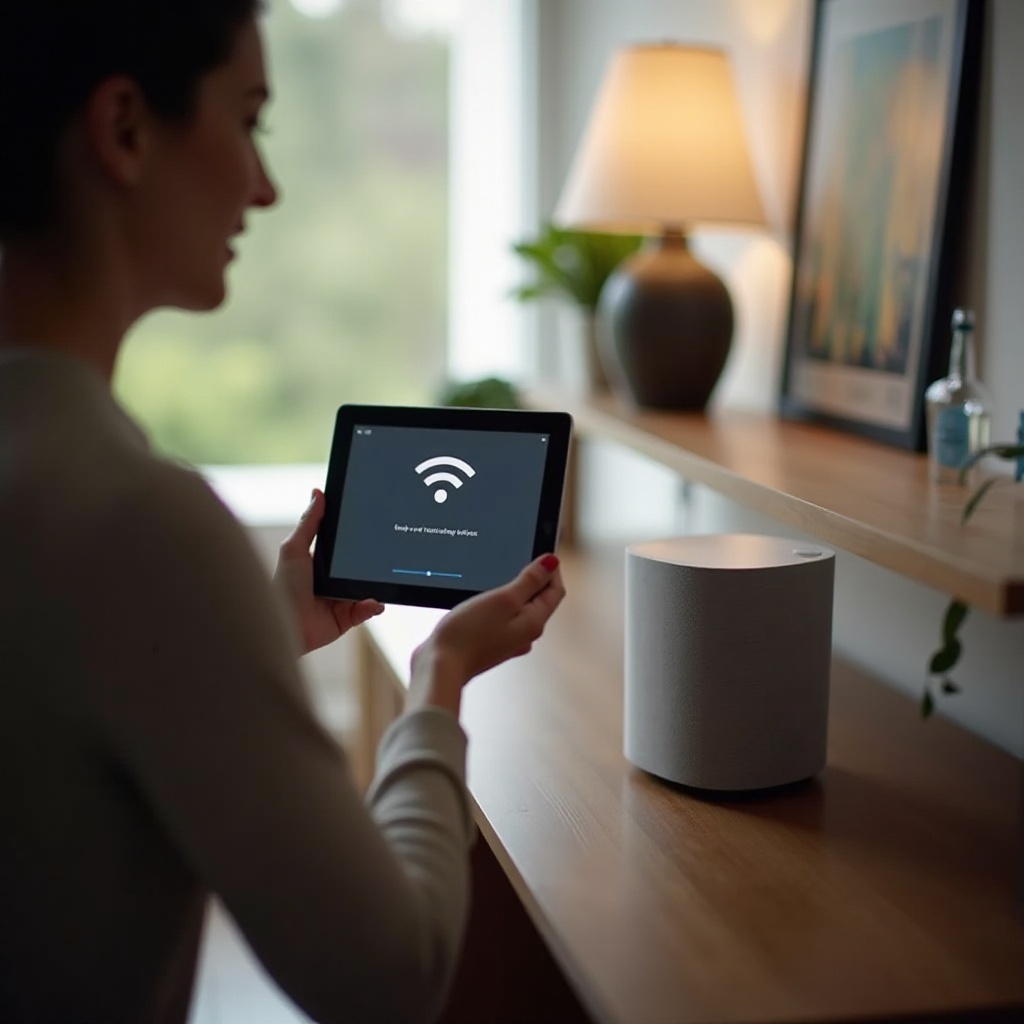
- Setting Up Wi-Fi and Internet Access: Connect your TV to Wi-Fi during initial setup prompts. A stable internet connection is essential for streaming and updates.
- Navigating the Smart Interface and Apps: Get familiar with the on-screen menu for downloading apps like Netflix and Disney+. Organize apps for easy access to your favorites, and utilize voice control for convenient navigation.
Having set up the smart TV features, let's discuss troubleshooting any common issues you might encounter.
Troubleshooting Common Issues
Even with a perfect setup, problems can arise. Here’s how to troubleshoot effectively:
- Solving Connectivity Problems: Ensure firmware is updated if connectivity issues occur. Check Wi-Fi strength and restart your router if needed.
- Addressing Picture and Sound Issues: If display or sound problems emerge, revisit the configured settings. As a last resort, a factory reset can resolve issues caused by incorrect settings.
Dedicating time to troubleshooting ensures your TCL TV runs smoothly, providing a hassle-free entertainment experience.
Conclusion
Setting up your TCL TV doesn't have to be intimidating. By adhering to these steps, you'll enjoy an optimized viewing experience perfectly tailored to your preferences. Whether it's the immersive sound or the crystal-clear images, a well-executed setup can significantly enhance your TCL TV's offerings.
Frequently Asked Questions
How do I reset my TCL TV to factory settings?
Navigate to the settings menu, select 'System Restart', and choose 'Factory Reset' following the prompts to complete the process.
What should I do if my TCL TV isn't connecting to Wi-Fi?
Ensure your Wi-Fi is functioning with other devices. Restart both the TV and router, and ensure the correct password and network settings are in place.
How can I update my TCL TV software?
Go to the settings menu, select 'System', then 'Software Update', and choose 'Check Now' to initiate updating your software.